
A Guide to the WordPress Dashboard and Admin Area
What you'll learn
 Dashboard Navigation FundamentalsContent Management EssentialsWebsite Appearance and CustomizationSite Configuration and Tools
The WordPress dashboard serves as the central command center for any WordPress website. For individuals embarking on their journey with open-source content management systems, mastering this administrative interface is fundamental to effectively building, managing, and maintaining a digital presence. Far more than just a backend, the dashboard provides a comprehensive suite of tools and settings that empower users to control every aspect of their site, from publishing content to customizing its appearance and managing user interactions. Understanding how to navigate this powerful area efficiently will streamline your workflow and unlock the full potential of your WordPress installation.
Accessing Your WordPress Dashboard
Gaining entry to your WordPress dashboard is straightforward. Typically, you can access it by appending /wp-admin to your website's URL (e.g., www.yourwebsite.com/wp-admin). Upon entering your username and password, you will be redirected to the main dashboard screen, which is your gateway to site management.
The Dashboard Overview Screen
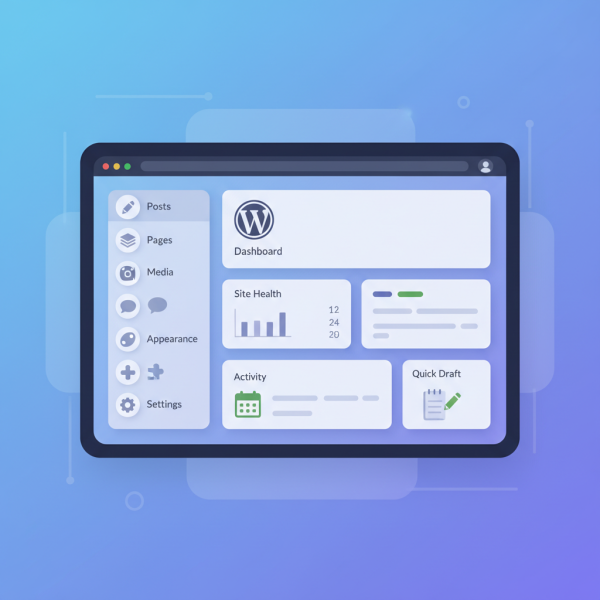
Upon logging in, you are greeted by the main Dashboard screen. This area provides a quick overview of your site's current status and recent activities. Key sections often include:
- Welcome to WordPress: A quick start guide for new users.
- At a Glance: Displays the number of posts, pages, comments, and the currently active theme.
- Activity: Shows recently published posts and comments, along with pending comments.
- Quick Draft: Allows you to quickly jot down a post idea and save it as a draft without navigating away.
- WordPress Events and News: Provides updates from the official WordPress blog and upcoming community events.
You can customize the visibility of these widgets using the "Screen Options" tab located at the top right of the screen.
Navigating the Admin Menu
The core of the WordPress dashboard is the left-hand admin menu. This persistent navigation bar contains links to all the administrative screens where you manage your site's content, appearance, functionality, and settings. Let's explore its main components:
Posts
This section is where you manage your blog posts. You can add new posts, edit existing ones, organize them into categories, and assign tags for better discoverability. The "All Posts" screen provides a list of all your published, draft, and pending posts, with options for quick editing and bulk actions. Categories and Tags help structure your content effectively for readers and search engines.
Media
The Media Library stores all the images, videos, audio files, and documents you upload to your website. You can view, edit (e.g., crop images), and delete media items here. The "Add New" option allows you to upload files directly to your library for use across your posts and pages.
Pages
Unlike posts, pages are generally static content, such as an "About Us" page, "Contact" page, or "Privacy Policy." The Pages section functions similarly to Posts, allowing you to create new pages, edit existing ones, and manage their hierarchy.
Comments
This area is dedicated to managing user comments on your posts. You can approve, unapprove, reply to, edit, mark as spam, or trash comments. Effective comment moderation is crucial for maintaining a healthy and respectful community around your content.
Appearance
The Appearance menu is where you control the visual design and layout of your website. This is a very powerful section:
- Themes: Manage your installed themes, activate new ones, or add fresh themes from the WordPress Theme Directory.
- Customize: Launch the WordPress Customizer to make live edits to your theme's settings, such as site identity, colors, typography, and menu locations.
- Widgets: Add, remove, and reorder widgets in your theme's sidebar, footer, or other widgetized areas to display dynamic content.
- Menus: Create and manage navigation menus for your site, defining which pages, posts, custom links, or categories appear in your main navigation.
- Theme File Editor: (Use with caution) Allows you to directly edit your theme's PHP, CSS, and JavaScript files. This is generally recommended only for advanced users with a good understanding of code and best practices.
Plugins
Plugins extend the functionality of your WordPress site without requiring you to write code. The Plugins section allows you to install new plugins from the WordPress Plugin Directory, activate or deactivate existing ones, and update them. Choosing reliable, well-maintained plugins is vital for site security and performance.
Users
Manage all registered users on your website, including administrators, editors, authors, contributors, and subscribers. You can add new users, edit their profiles, change their roles, and manage their permissions. The "Your Profile" sub-menu allows you to update your personal information and dashboard color scheme.
Tools
This section provides various utilities for site management:
- Available Tools: Often includes a category and tag converter.
- Import: Import content from other platforms (e.g., Blogger, LiveJournal) or other WordPress installations.
- Export: Export your site's content (posts, pages, comments, custom fields, etc.) to an XML file, useful for backups or migrations.
- Site Health: Provides critical information about your WordPress configuration and recommends improvements for performance and security.
Settings
The Settings menu contains global configurations for your entire WordPress site:
- General: Set your site title, tagline, WordPress and site address URLs, email address, time zone, and language.
- Writing: Configure default post category, post format, and post via email settings.
- Reading: Determine what your homepage displays, control the number of blog posts shown on archive pages, and manage search engine visibility.
- Discussion: Control how comments are handled, including moderation, blacklisting, and avatar settings.
- Media: Define default image sizes for thumbnails, medium, and large images.
- Permalinks: Structure your URLs for better SEO and user experience. Choosing a human-readable permalink structure is highly recommended.
- Privacy: Select or create your site's privacy policy page.
The Top Bar (Admin Bar)
When logged in, a black bar appears at the very top of your screen, both in the dashboard and on the frontend of your site. This admin bar provides convenient shortcuts for common actions, such as adding a new post or page, accessing comments, customizing the theme, or viewing your profile. It also displays notifications for updates or new comments.
Customizing Your Dashboard Experience
WordPress allows for personalization of the dashboard interface. The "Screen Options" tab at the top right of most admin screens enables you to hide or show certain modules. Many dashboard widgets are also draggable, allowing you to rearrange them according to your preferences and workflow, ensuring the most important information is always front and center.
Conclusion
The WordPress dashboard is an indispensable tool for anyone managing a website powered by this open-source CMS. By systematically exploring its various sections—from content creation in Posts and Pages, to visual customization via Appearance, extending functionality with Plugins, and fine-tuning global behaviors in Settings—users gain the confidence and competence required to manage their online presence effectively. A thorough understanding of each menu item and its purpose is the cornerstone of efficient WordPress site administration, empowering you to control and evolve your digital platform with ease.
Comprehension questions
 What is the primary function of the WordPress dashboard overview screen, and which specific sections are commonly found there?Which section of the WordPress admin menu is primarily used for changing the visual design of a website, and what are some of its key sub-components?