
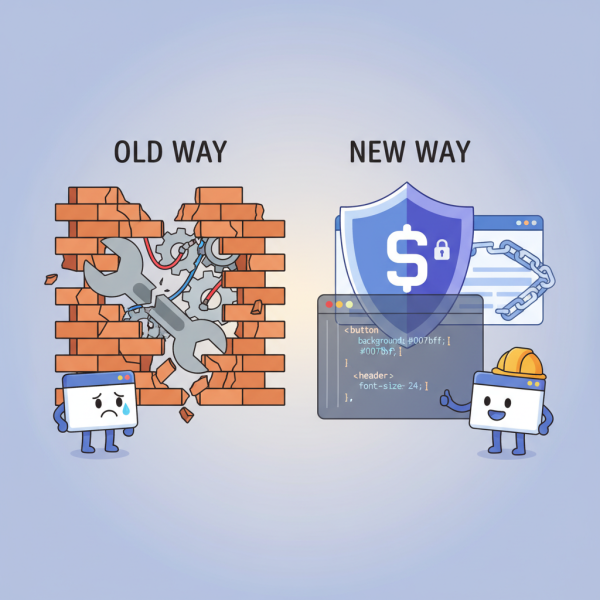
The Power of Additional CSS for Theme Overrides
What you'll learn
 Non-destructive CustomizationCSS Specificity Best PracticesBrowser Developer Tools for StylingUpdate-Proof Theme Modifications
Introduction to Non-Destructive CSS Customization
As Open Source Web Software Developers, we often find ourselves working with existing themes and frameworks, particularly within platforms like WordPress or similar content management systems. A common challenge arises when we need to make minor visual adjustments – a tweak to a button's color, a font size change, or adjusting spacing – without fundamentally altering the theme's core structure. Traditionally, this might involve editing the theme's stylesheet directly, a practice fraught with peril, especially when theme updates roll around. Fortunately, modern web platforms offer elegant solutions to this dilemma, with the "Additional CSS" panel being a prime example. This powerful feature allows developers to inject custom CSS rules that override existing styles, ensuring modifications are update-proof and maintainable, all without touching a single core theme file.
The Perils of Direct Theme File Editing
Before diving into the solution, it's crucial to understand why directly editing a theme's `style.css` or other core stylesheets is generally discouraged, especially for themes sourced from a repository or marketplace. While it provides immediate results, this approach introduces significant long-term maintenance issues:
- Update Overwrites: The most critical problem is that any theme update will overwrite your direct modifications. All your custom styles will be lost, forcing you to reapply them or re-engineer your solution.
- Debugging Complexity: When issues arise, distinguishing between your custom code and the original theme code becomes more difficult, complicating the debugging process.
- Version Control Nightmare: Integrating directly modified themes into a robust version control system is cumbersome and prone to errors, as the original theme might not be part of your project's repository.
- Lack of Portability: Your customizations are tightly coupled with that specific theme installation, making it harder to migrate or reuse them across different projects or instances.
Embracing the Additional CSS Panel
The Additional CSS panel, typically found within the Customizer interface of platforms like WordPress, serves as a dedicated, safe sandbox for your custom styles. It's designed specifically for visual tweaks and overrides, providing a clean separation between your modifications and the theme's original code. Styles entered here are stored in the database, making them persistent across theme updates and easily accessible for future adjustments.
Its primary purpose is to allow developers to apply targeted CSS rules that cascade and override existing theme styles. This method adheres to the principles of progressive enhancement and non-destructive development, crucial for maintaining a healthy and update-friendly website.
Implementing Custom Styles: A Step-by-Step Approach
Using the Additional CSS panel is straightforward and follows a logical workflow:
- Access the Customizer: Navigate to your platform's Customizer (e.g., in WordPress, Appearance > Customize).
- Locate Additional CSS: Find the "Additional CSS" or a similarly named panel within the Customizer options.
- Identify Target Elements: Use your browser's developer tools (e.g., Chrome DevTools, Firefox Developer Tools) to inspect the elements you wish to modify. This step is critical for identifying the correct CSS selectors.
- Write Your CSS: In the provided text area, write your custom CSS rules. Aim for precise selectors to minimize unintended side effects. For example, if you want to change the main navigation link color, you might use
.main-navigation a { color: #ff0000; }. - Preview and Publish: The Customizer typically provides a live preview of your changes. Once satisfied, save and publish your modifications.
Understanding CSS Specificity and !important
When using the Additional CSS panel, a foundational understanding of CSS specificity is paramount. Specificity determines which CSS rule gets applied when multiple rules target the same element. Rules in the Additional CSS panel are typically loaded later in the cascade and often have a higher specificity than generic theme styles, making them effective for overrides.
In instances where a theme's styles are highly specific or inline, you might encounter situations where your custom rules aren't applying. In such cases, the `!important` declaration can be used to force a rule's application. However, `!important` should be used sparingly and as a last resort, as it can make future debugging and overriding even harder due to its high precedence. Over-reliance on `!important` often indicates a need for more specific or better-structured selectors.
Leveraging Browser Developer Tools
Your browser's built-in developer tools are indispensable companions when crafting custom CSS. They allow you to:
- Inspect Elements: Hover over any element on a page to see its HTML structure and applied CSS rules, including their source files and specificity.
- Test Changes Live: Experiment with CSS property changes directly in the browser without altering your site's files. This instant feedback loop dramatically speeds up the development process.
- Identify Specific Selectors: Precisely pinpoint the CSS selectors that are currently styling an element, helping you write targeted override rules.
- Debug Specificity Issues: Understand why a certain style isn't applying by observing the cascade and specificity of conflicting rules.
Best Practices for Maintainable Additional CSS
To ensure your custom CSS remains clean, readable, and manageable:
- Add Comments: Explain the purpose of complex rules or groups of rules.
- Organize Logically: Group related styles together (e.g., all header styles, then all footer styles).
- Use Precise Selectors: Avoid overly broad selectors that might inadvertently affect other elements.
- Keep it Minimal: Only include the necessary styles to achieve your desired visual tweak. If structural changes are required, consider a child theme.
- Test Responsiveness: Always check your changes across different screen sizes and devices.
When to Consider a Child Theme
While the Additional CSS panel is excellent for visual tweaks, it's not a replacement for a child theme when more extensive modifications are needed. A child theme is essential when you need to:
- Modify theme template files (e.g., `header.php`, `single.php`).
- Add custom functions via `functions.php`.
- Override JavaScript files.
- Make significant structural or functional changes that go beyond simple styling.
For purely CSS-driven visual adjustments, the Additional CSS panel offers a lightweight and highly effective solution without the overhead of creating an entire child theme.
Summary
The Additional CSS panel is an invaluable tool for Open Source Web Software Developers seeking to make non-destructive visual tweaks to existing themes. By providing a safe, update-proof environment for custom styles, it eliminates the risks associated with direct theme file editing. Mastering its use, coupled with an understanding of CSS specificity and effective utilization of browser developer tools, empowers developers to maintain clean, robust, and easily updateable websites. This approach fosters a more resilient development workflow, allowing for quick aesthetic adjustments without compromising the integrity or future maintainability of the underlying theme.
Comprehension questions
 What are the primary risks associated with directly editing a theme's core stylesheet for visual modifications?How does the Additional CSS panel prevent custom styles from being overwritten during theme updates?Explain the concept of CSS specificity and how it relates to successfully overriding existing theme styles.When is it more appropriate to create a child theme rather than relying solely on the Additional CSS panel for customization?