
Troubleshooting Critical WordPress Errors and Streamlining Updates
What you'll learn
 WordPress Error ResolutionEfficient Update ManagementMinimizing Website DowntimeDeveloper Best Practices
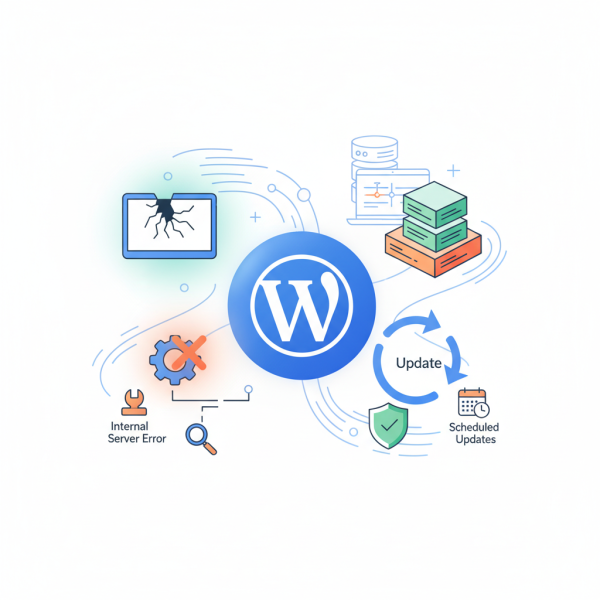
For open source web software developers, WordPress is an indispensable tool, but its power comes with the occasional challenge. From the dreaded White Screen of Death (WSOD) to mysterious internal server errors and the complexities of managing bulk updates, navigating these hurdles efficiently is crucial for maintaining robust and performant websites. This article delves into practical, developer-centric strategies for diagnosing and resolving common WordPress maladies, alongside best practices for streamlining the update process while minimizing disruptions.
Understanding the White Screen of Death (WSOD)
The White Screen of Death is arguably the most unsettling WordPress error, presenting a blank white page instead of your website. It typically indicates a fatal PHP error or exhaustion of PHP memory limits. When faced with the WSOD, panic is unproductive; systematic debugging is your ally.
- Check for Recent Changes: The first step is always to recall recent actions. Did you just install or update a plugin or theme? This is often the culprit.
- Increase PHP Memory Limit: A common cause is insufficient PHP memory. Access your
wp-config.phpfile and add or modifydefine('WP_MEMORY_LIMIT', '256M');above the line `/* That's all, stop editing! Happy publishing. */`. - Disable Plugins: If increasing memory doesn't work, disable all plugins. You can do this by renaming the
wp-content/pluginsdirectory via FTP or cPanel's File Manager. If the site comes back, reactivate plugins one by one to pinpoint the problematic one. - Switch to a Default Theme: Similarly, a faulty theme can cause WSOD. Rename your active theme's folder in
wp-content/themesto force WordPress to fall back to a default theme like Twenty Twenty-Four. - Enable WP_DEBUG: For detailed error messages, open
wp-config.phpand changedefine('WP_DEBUG', false);todefine('WP_DEBUG', true);. This will display PHP errors on the screen or log them, providing critical clues. Remember to disable this in production environments.
Diagnosing Internal Server Errors (500)
Internal Server Errors (HTTP Error 500) are generic messages indicating that something went wrong on the server, but it couldn't be more specific. Unlike WSOD, these can stem from various server-side issues, not just PHP.
- Check the .htaccess File: A corrupted or incorrectly configured
.htaccessfile is a frequent cause. Access your site via FTP or file manager, rename your existing.htaccessfile to something like.htaccess_old. Then, go to WordPress Admin > Settings > Permalinks and click 'Save Changes' (without making any actual changes) to generate a new, clean.htaccessfile. - Increase PHP Memory Limit: As with WSOD, memory exhaustion can manifest as a 500 error. Revisit the
wp-config.phpmemory limit adjustment. - Disable Plugins/Themes: Similar to the WSOD troubleshooting, systematically disabling plugins and themes can identify conflicts or resource-intensive components causing the server error.
- Check Server Error Logs: The most definitive way to diagnose a 500 error is to examine your server's error logs. Your hosting provider's control panel (cPanel, Plesk, etc.) usually provides access to these logs, offering specific details about the error's origin.
- Increase PHP Execution Time: Long-running scripts can hit execution time limits, resulting in a 500 error. You can try increasing this limit in your
php.inifile (max_execution_time = 300) or viawp-config.php(set_time_limit(300);).
Strategies for Efficient Bulk Updates
Keeping WordPress core, plugins, and themes updated is paramount for security and functionality. However, bulk updates can be daunting, especially on live sites. A methodical approach can turn a potential headache into a smooth operation.
- Staging Environment First: Never update directly on a production site without testing. Always perform all updates (core, plugins, themes) on a staging environment that mirrors your live site. This allows you to identify and resolve compatibility issues without affecting users.
- Full Backup Before Anything: Even with a staging environment, always take a complete backup of your production site (files and database) immediately before initiating any updates. This provides a rollback point if unforeseen issues arise after deployment.
- Update Incrementally or Systematically: Instead of updating everything at once, consider updating core, then plugins, then themes, or even updating plugins in small batches. This helps isolate potential conflicts if something goes wrong. However, for maximum efficiency, especially after testing on staging, a full update can be deployed.
- Read Changelogs: Before updating, particularly for major versions or critical plugins, review the changelogs. They often highlight important changes, potential breaking issues, or specific update instructions.
Minimizing Downtime During Updates
Downtime is a developer's nemesis. While updates are necessary, minimizing their impact on users is a top priority.
- Scheduled Maintenance Window: Plan updates during off-peak hours when your website experiences the lowest traffic. Communicate any planned maintenance to users if the downtime is expected to be significant.
- Use a Maintenance Mode Plugin: Activate a maintenance mode plugin before initiating updates on a live site. This displays a user-friendly message to visitors instead of a broken site, improving user experience during brief downtimes.
- Version Control (Git/SVN): For advanced setups, managing WordPress installations and updates through version control systems (like Git) allows for more controlled deployments and easier rollbacks. Push tested updates from staging to production repositories.
- Managed Hosting Features: Many managed WordPress hosts offer features like one-click staging environments, automatic backups, and even rollback options, significantly simplifying the update process and reducing manual effort.
Summary
Mastering WordPress for open source web developers involves not only building but also maintaining and troubleshooting. We've explored systematic approaches to tackle the White Screen of Death and Internal Server Errors, emphasizing the importance of debugging tools like WP_DEBUG and careful examination of server logs. Furthermore, we delved into efficient strategies for managing bulk updates, highlighting the critical roles of staging environments, comprehensive backups, and minimizing downtime through scheduled windows and maintenance mode. By adopting these practices, developers can ensure their WordPress sites remain robust, secure, and user-friendly.
Comprehension questions
 What are the common causes and initial troubleshooting steps for the WordPress White Screen of Death (WSOD)?How can developers effectively diagnose and resolve Internal Server Errors (500) in WordPress?What are the key strategies for efficiently managing bulk updates of WordPress core, plugins, and themes?Which methods can be employed to minimize downtime during WordPress updates on a live production site?