
Creating and Activating a WordPress Child Theme for Customizations
What you'll learn
 Child Theme FundamentalsUpdate-Safe CustomizationChild Theme Creation ProcessExtending Theme Functionality
For WordPress website developers, the need to customize themes is almost universal. However, directly modifying a parent theme's files poses a significant risk: all your hard work can be instantly overwritten and lost with the next theme update. This common predicament often leads to a dilemma between keeping software up-to-date for security and features, and preserving bespoke design and functionality. Fortunately, the concept of a child theme provides an elegant and robust solution, creating a secure environment where your code-level customizations can thrive and survive future updates without compromise.
What is a Child Theme and Why is it Essential?
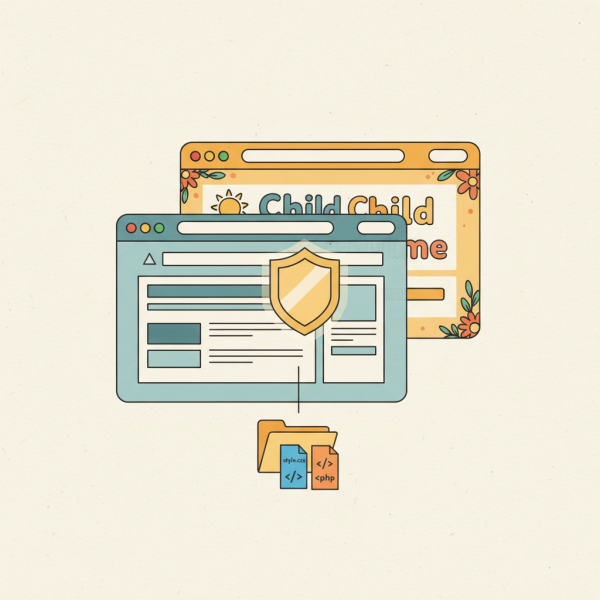
A child theme is a theme that inherits the functionality, features, and styling of another theme, known as the parent theme. It allows you to modify, or add to, the functionality of that parent theme. Think of it as an overlay; the child theme sits on top of the parent theme, selectively overriding or extending its components.
The primary advantage of using a child theme is update safety. When the parent theme receives an update, your customizations, which reside exclusively in the child theme, remain untouched. This ensures that your site's unique look and feel, along with any custom features, are preserved while benefiting from the parent theme's latest improvements, bug fixes, and security patches.
Beyond update resilience, child themes promote better development practices by separating your custom code from the core theme files. This separation makes debugging easier, enhances maintainability, and allows for more modular development. It also provides a clear audit trail for your modifications.
The Core Components of a Child Theme
At its heart, a child theme typically consists of just two essential files, though it can contain many more:
style.css: This file is mandatory. It contains the theme header information that identifies it as a child theme and specifies its parent. Crucially, it's also where you enqueue the parent theme's stylesheet and add your own custom CSS rules to override or extend the parent's styling.functions.php: This file is optional but highly recommended for most child themes. It allows you to add custom PHP functions, hooks, and filters without modifying the parent theme'sfunctions.php. It is also the correct place to enqueue scripts and styles for both the parent and child themes.
Other files can be added to a child theme to override specific template files from the parent, but these two are the foundational elements.
Step-by-Step: Creating Your First Child Theme
Creating a child theme is a straightforward process for developers familiar with the file system:
- Create a New Folder: Inside your application's themes directory (e.g.,
wp-content/themes/for WordPress), create a new folder for your child theme. A good naming convention is to append "-child" to the parent theme's directory name (e.g.,twentytwentythree-child). - Create
style.css: Inside this new folder, create a file namedstyle.css. This file needs a special header to inform the system that it's a child theme. The key line isTemplate: parent-theme-directory-name, which must exactly match the parent theme's folder name.
/*Theme Name: My Custom Child ThemeTheme URI: https://example.com/Description: A custom child theme for [Parent Theme Name].Author: Your NameAuthor URI: https://example.com/Version: 1.0.0Template: parent-theme-directory-name*/Replace bracketed placeholders with your actual details and the parent theme's directory name.
- Create
functions.php: Also inside your child theme folder, create a file namedfunctions.php. This is where you'll enqueue the parent theme's stylesheet and potentially your child theme's stylesheet.
This code snippet is crucial. It ensures that the parent theme's styles are loaded first, allowing your child theme's style.css to override them.
Activating Your Child Theme
Once the child theme folder and its initial style.css (and optionally functions.php) are correctly set up, activation is straightforward:
- Navigate to your platform's theme administration area (e.g., Appearance > Themes in WordPress).
- Locate your newly created child theme by its "Theme Name" as defined in
style.css. - Click the "Activate" button.
Upon activation, your website will now be running on the child theme, inheriting everything from its parent while being ready for your custom modifications.
Customizing with a Child Theme
The real power of a child theme lies in its ability to customize safely:
- Overriding Template Files: To modify a specific template file (e.g.,
header.php,single.php), simply copy the file from the parent theme into your child theme's folder, maintaining the same directory structure. The system will automatically use the child theme's version instead of the parent's. - Adding Custom Styles: All your custom CSS should go directly into your child theme's
style.css. Because the parent styles are enqueued first, your rules will take precedence. - Extending Functionality: Use
functions.phpto add new functions, custom post types, shortcodes, or modify existing functionality using hooks and filters provided by the platform (e.g., WordPress actions and filters).
Always remember to keep your modifications minimal and focused. Leverage hooks and filters whenever possible instead of directly copying and modifying large parent theme files. This approach makes your child theme more robust and easier to maintain.
Summary
Child themes are an indispensable tool for open source web software developers seeking to customize their websites while maintaining a secure and update-friendly environment. By understanding their core components, following the creation steps, and leveraging their ability to safely override and extend parent theme functionalities, developers can ensure their unique customizations persist through critical platform and theme updates. This approach not only safeguards development efforts but also promotes best practices for long-term site health and maintainability, allowing for continuous evolution without fear of data loss.
Comprehension questions
 What is the primary risk of directly modifying a parent theme's files, and how does a child theme mitigate this risk?Which two files are considered the core components of a child theme, and what is the primary purpose of each?Explain the critical line required in a child theme's `style.css` file to identify its parent theme.When customizing with a child theme, what is the recommended approach for modifying specific template files from the parent theme?