
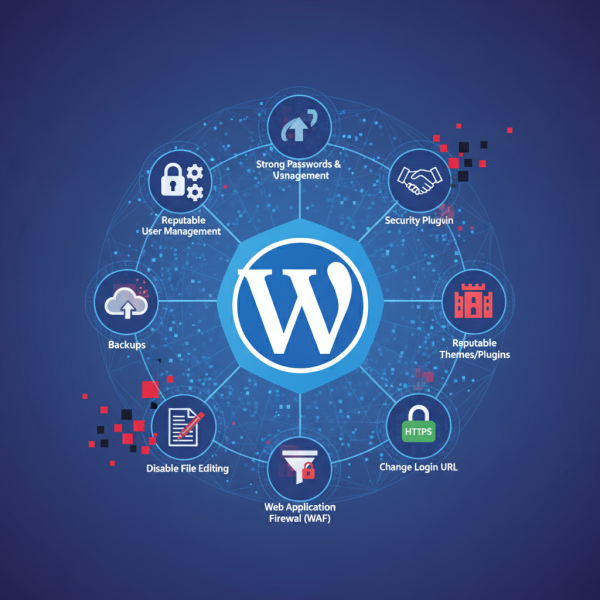
10 Essential Steps to WordPress Security
What you'll learn
 WordPress Security Best PracticesSite Hardening TechniquesPlugin and Theme VigilanceData Protection Strategies
For those deeply entrenched in the open-source world, WordPress represents a powerful, flexible, and community-driven platform for building websites. However, with great power comes great responsibility, especially when it comes to security. While WordPress itself is developed with security in mind, the vast ecosystem of themes, plugins, and custom code means that securing your site is an ongoing, proactive endeavor. This ultimate checklist will guide you through 10 essential steps to harden your WordPress site, ensuring it remains resilient against common threats and vulnerabilities.
Why WordPress Security Matters (Even for Open Source Enthusiasts)
As users of open-source software, we appreciate transparency and collaborative development. However, this also means that vulnerabilities, when discovered, can be known to a wider audience, including malicious actors. A compromised WordPress site can lead to data breaches, defacement, SEO spam, and even serve as a launchpad for attacks on other websites. Protecting your site is not just about your own data; it's about maintaining the integrity of the internet and fostering trust within the open-source community. Understanding and implementing security measures is a fundamental skill for any serious WordPress user.
The Ultimate WordPress Security Checklist: 10 Essential Steps
1. Strong Passwords and User Management
The foundation of any security strategy begins with robust access control. Ensure all users, especially administrators, employ strong, unique passwords that are complex and lengthy. Consider using a password manager. Furthermore, limit the number of administrative accounts. Grant only the necessary user roles and permissions. Implement two-factor authentication (2FA) wherever possible, adding an extra layer of security beyond just a password.
2. Keep WordPress, Themes, and Plugins Updated
This is arguably the most critical step. Developers regularly release updates to patch security vulnerabilities, fix bugs, and introduce new features. Ignoring these updates leaves your site exposed to known exploits. Make a habit of checking for and applying updates for the WordPress core, all themes, and all plugins immediately. Before updating, always perform a full backup.
3. Choose Reputable Themes and Plugins
The WordPress ecosystem thrives on its extensibility, but not all themes and plugins are created equal. Download them only from trusted sources like the official WordPress.org repository, reputable theme/plugin marketplaces, or well-known developers. Free themes and plugins from suspicious sites can often contain malicious code, backdoors, or outdated security practices, turning them into significant vulnerabilities.
4. Implement a Robust Security Plugin
A dedicated security plugin acts as your site's guardian. Plugins like Wordfence, Sucuri Security, or iThemes Security Pro offer a suite of features including:
- Firewall protection to block malicious traffic.
- Malware scanning to detect compromised files.
- Brute-force attack prevention.
- Login attempt limiting.
- File integrity monitoring.
These tools significantly enhance your site's defensive capabilities.
5. Regular Backups Are Non-Negotiable
Even with the best security measures, incidents can happen. A reliable backup strategy is your ultimate safety net. Implement automated, regular backups of your entire WordPress site, including both files and database. Store these backups in a secure, off-site location. Crucially, test your backups periodically to ensure they can be successfully restored, providing peace of mind in case of a disaster.
6. Secure Your wp-config.php File
The wp-config.php file contains vital WordPress configuration settings, including your database credentials. It is a prime target for attackers. Ensure its file permissions are set correctly (typically 644 or 440, consult your host) to prevent unauthorized access. Consider moving its location one directory above your WordPress root (if your hosting setup supports it and you know how to configure it properly) for an extra layer of obscurity, though correct permissions are often sufficient.
7. Disable File Editing in the WordPress Dashboard
By default, WordPress allows theme and plugin file editing directly from the dashboard. While convenient for quick tweaks, this feature can be a security risk. If an attacker gains access to your admin area, they could inject malicious code into your site files. Disable this feature by adding define('DISALLOW_FILE_EDIT', true); to your wp-config.php file. You can still edit files via SFTP/FTP or your host's file manager.
8. Change Default WordPress Login URL
The default WordPress login URL (yourdomain.com/wp-admin or yourdomain.com/wp-login.php) is universally known, making it an easy target for automated brute-force attacks. Changing this URL to a custom, less predictable one can significantly reduce the number of direct login attempts. Many security plugins or dedicated plugins offer this functionality, adding a simple but effective layer of obscurity.
9. Use a Web Application Firewall (WAF)
A Web Application Firewall (WAF) acts as a shield between your website and the internet. It filters, monitors, and blocks malicious HTTP traffic to and from a web application. A WAF can protect your site from various attacks, including SQL injection, cross-site scripting (XSS), and other OWASP Top 10 vulnerabilities, even before they reach your WordPress installation. Cloud-based WAFs like Cloudflare or Sucuri are popular choices.
10. Implement SSL/HTTPS
An SSL (Secure Sockets Layer) certificate encrypts the data exchanged between your website and its visitors, ensuring sensitive information like login credentials and personal data remains private. Beyond security, HTTPS is now a ranking factor for search engines and builds trust with your audience, indicated by the padlock icon in the browser. Most hosting providers offer free SSL certificates through Let's Encrypt, making implementation straightforward.
Beyond the Checklist: A Culture of Security
Implementing these 10 steps provides a robust foundation for your WordPress site's security. However, cybersecurity is not a one-time task; it's an ongoing process. Stay informed about the latest security threats, regularly review your site's security settings, and always be cautious about what themes and plugins you install. Developing a security-first mindset is essential for maintaining a safe and reliable online presence within the open-source community.
Summary
Securing your WordPress site is a critical responsibility, especially for open-source users who champion robust digital environments. This article presented a 10-step checklist to harden your site, starting with fundamental practices like using strong passwords and diligent user management. We emphasized the non-negotiable importance of keeping WordPress core, themes, and plugins consistently updated to patch vulnerabilities. The discussion also covered selecting reputable themes and plugins, deploying a powerful security plugin, and maintaining regular, testable backups as essential defensive layers. Further hardening techniques included securing the wp-config.php file, disabling dashboard file editing, customizing the login URL, and implementing advanced protections like a Web Application Firewall (WAF) and SSL/HTTPS encryption. Adopting these comprehensive security measures ensures your WordPress site remains resilient, trustworthy, and protected against evolving cyber threats, reinforcing the integrity of your open-source endeavors.
Comprehension questions
 Why is keeping WordPress, themes, and plugins updated considered a critical security step?What is the primary benefit of disabling file editing from the WordPress dashboard?Name two essential features typically offered by a robust WordPress security plugin.How does an SSL/HTTPS certificate contribute to both security and user trust for a WordPress site?