
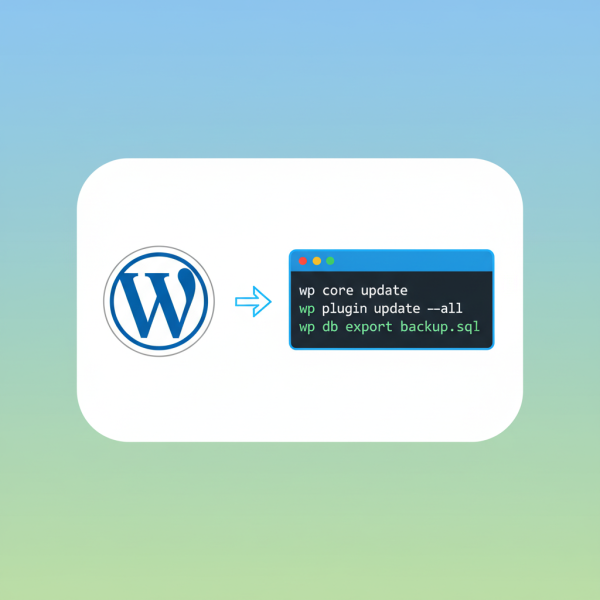
A Guide to WordPress WP-CLI for Enhanced Efficiency
What you'll learn
 WP-CLI BasicsEfficient WordPress ManagementCommand-Line OperationsAutomation and Scripting
For many WordPress users, managing a website often involves navigating through the admin dashboard, clicking through menus, and waiting for pages to load. While the graphical user interface is intuitive, it can become a bottleneck when dealing with multiple sites, large installations, or repetitive tasks. This is where the WordPress Command Line Interface, or WP-CLI, comes into play. WP-CLI is a powerful tool designed to streamline WordPress management, allowing users to interact with their sites directly from the command line. It offers a significantly faster and more efficient way to perform a wide array of administrative tasks, from updating core files and managing plugins to handling databases and users, all without ever opening a web browser. Embracing WP-CLI can transform how you manage your WordPress installations, saving valuable time and reducing manual effort, making it an essential skill for anyone serious about optimizing their WordPress workflow.
What is WP-CLI?
WP-CLI is an official command-line tool for WordPress. It provides a text-based interface to perform common and advanced WordPress tasks. Instead of using a mouse to click through the WordPress admin area, you type commands into a terminal or command prompt. This direct interaction with your WordPress installation allows for incredible speed and automation capabilities.
It's important to understand that WP-CLI works with your existing WordPress installation. It doesn't replace WordPress; rather, it extends its functionality, giving you a powerful new way to control it. From installing WordPress itself to managing every aspect of themes, plugins, users, and content, WP-CLI offers a command for almost every operation you might typically do through the browser.
Why Use WP-CLI? The Benefits
The primary advantage of using WP-CLI is efficiency. Repetitive tasks that might take several clicks and page loads in the admin dashboard can be executed with a single command. This translates directly into significant time savings, especially for developers and site administrators managing multiple WordPress sites or performing frequent updates.
- Speed and Efficiency: Execute tasks much faster than through the GUI. Imagine updating all plugins on a site with one command instead of clicking "update" for each one individually.
- Automation: WP-CLI commands can be easily scripted. This means you can create custom scripts to perform complex operations, such as deploying a new site, performing nightly backups, or running maintenance tasks automatically.
- Remote Management: Manage your WordPress site remotely via SSH, without needing a graphical interface or even a web browser. This is invaluable for server administrators and headless WordPress setups.
- Debugging: Access detailed information and perform diagnostics that are often not available or harder to get through the WordPress admin.
- Bulk Operations: Easily manage multiple users, posts, or other entities across your site with powerful bulk commands.
Getting Started: Installation and Setup
Before you can harness the power of WP-CLI, you need to install it. The process is relatively straightforward, but it does require SSH access to your server and a basic understanding of the command line.
Prerequisites:
- SSH Access: You'll need Secure Shell (SSH) access to your web server.
- PHP: Your server must have PHP 5.6 or greater installed. WP-CLI itself is a PHP application.
- WordPress Installation: You need an existing WordPress installation or be ready to create one.
Installation Steps:
To install WP-CLI, follow these steps:
- Download the WP-CLI Phar File: Use
curl -O https://raw.githubusercontent.com/wp-cli/builds/gh-pages/phar/wp-cli.pharto download the executable file. - Verify the Phar File: (Optional but recommended) Run
php wp-cli.phar --infoto ensure it's working correctly. - Make it Executable: Use
chmod +x wp-cli.pharto give it executable permissions. - Move it to Your PATH: For global access, move the file to a directory in your system's PATH, such as
/usr/local/bin/. You can do this withsudo mv wp-cli.phar /usr/local/bin/wp. - Verify Global Installation: Open a new terminal session and simply type
wp --info. If it displays information about WP-CLI, you're ready to go!
Once installed, navigate to the root directory of any WordPress installation on your server, and you can start running WP-CLI commands.
Essential WP-CLI Commands for Daily Management
WP-CLI offers hundreds of commands, but a few are crucial for daily site management. Mastering these can significantly speed up your workflow.
- Core Management:
wp core download: Downloads WordPress core files.wp core install --url=example.com --title="My Site" --admin_user=admin --admin_password=password --admin_email=email@example.com: Installs WordPress.wp core update: Updates WordPress to the latest version.wp core version: Displays the current WordPress version.
- Plugin Management:
wp plugin list: Lists all installed plugins.wp plugin install akismet --activate: Installs and activates a plugin from the WordPress repository.wp plugin update --all: Updates all installed plugins.wp plugin deactivate hello-dolly: Deactivates a specific plugin.wp plugin uninstall hello-dolly: Uninstalls a specific plugin.
- Theme Management:
wp theme list: Lists all installed themes.wp theme install twentytwentythree --activate: Installs and activates a theme.wp theme update --all: Updates all installed themes.
- User Management:
wp user list: Lists all users.wp user create john.doe john@example.com --role=editor --user_pass=strongpassword: Creates a new user.wp user update 123 --user_email=newemail@example.com: Updates a user's details by ID.
- Database Management:
wp db export backup.sql: Exports the database to an SQL file.wp db import backup.sql: Imports a database from an SQL file.wp db optimize: Optimizes your WordPress database tables.
- Cache Flushing:
wp cache flush: Clears all object caches, useful after updates or content changes.
- Option Management:
wp option get blogname: Retrieves a specific WordPress option.wp option update blogname "My New Site Title": Updates a specific WordPress option.
These commands provide a strong foundation for managing your WordPress site with efficiency and precision.
Advanced WP-CLI Techniques
Beyond daily tasks, WP-CLI shines in more complex scenarios, offering features that significantly enhance development and maintenance workflows.
Running Multiple Commands with Scripting:
One of WP-CLI's most powerful features is its ability to be integrated into shell scripts. This allows you to chain multiple commands together to automate complex operations. For example, you could write a script to:
- Download and install WordPress.
- Install and activate a set of essential plugins.
- Import a starter database.
- Set up initial user accounts.
This level of automation is invaluable for deploying new sites rapidly or for standardizing development environments.
Search and Replace:
The wp search-replace command is incredibly useful for migrating sites or updating URLs across your database. It safely performs string replacements directly in your database, handling serialization issues automatically. For instance, wp search-replace 'http://old-domain.com' 'https://new-domain.com' --dry-run allows you to preview changes before applying them, ensuring data integrity.
Debugging and Diagnostics:
WP-CLI provides commands to help debug issues. wp debug can enable and disable WordPress debug modes. Commands like wp option get SCRIPT_DEBUG can quickly show you specific configuration values. Furthermore, by running wp shell, you can interact with WordPress's PHP environment directly from your terminal, allowing for real-time testing and debugging of WordPress functions.
Using Aliases:
For users managing multiple WordPress installations on a single server, WP-CLI aliases can save a lot of typing. You can define aliases in a configuration file (~/.wp-cli/config.yml) to quickly switch between different sites without navigating directories. For example, you could define @mysite to point to /var/www/html/mysite/ and then run wp @mysite plugin update --all from any directory.
Best Practices for WP-CLI
While WP-CLI is a robust tool, adhering to best practices will ensure smooth and safe operations.
- Always Backup Your Database: Before running any significant database-altering commands, always perform a database backup using
wp db export. This is your safety net. - Test in a Staging Environment: Whenever possible, test complex or unfamiliar commands on a staging or development environment before applying them to a live production site.
- Understand Command Syntax: Read the official documentation or use
wp help [command]to understand exactly what a command does and its available options before executing it. - Use with Caution: The power of WP-CLI means that mistakes can have significant consequences. Double-check your commands, especially those involving deletions or major modifications.
- Keep WP-CLI Updated: Regularly update WP-CLI itself by running
wp cli updateto benefit from the latest features, bug fixes, and security enhancements.
Summary
WP-CLI is an indispensable tool for anyone managing WordPress websites, offering a command-line interface that drastically improves efficiency, speed, and automation capabilities. From basic tasks like updating core and managing plugins to advanced operations such as database search-and-replace and scripting, WP-CLI empowers users to control their WordPress installations with unparalleled precision. By familiarizing yourself with its essential commands and adopting best practices, you can streamline your workflow, reduce manual effort, and elevate your WordPress management skills, ultimately leading to more robust and easily maintainable websites.
Comprehension questions
 What is the primary benefit of using WP-CLI compared to the traditional WordPress admin dashboard?What are the three essential prerequisites needed before installing WP-CLI on a server?Provide examples of how WP-CLI can manage both plugins and themes.Describe one advanced WP-CLI technique mentioned in the article and its practical use case.