Navigating the Joomla Administrator
- -->> 3. Navigating the Joomla Administrator
What you'll learn
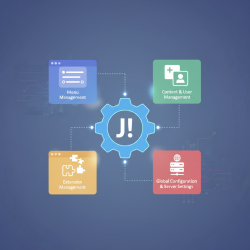
 Joomla Administrator Interface NavigationGlobal Configuration EssentialsEffective User Management in JoomlaContent and Extension Management Fundamentals
Navigating the Joomla administrator interface can seem daunting at first glance, but with a foundational understanding of its key areas, you can manage your website with confidence and efficiency. This guide aims to demystify the backend of your Joomla site, providing a clear roadmap through essential sections such as the Control Panel, Global Configuration, and User Management. Mastering these core functionalities is crucial for maintaining a secure, organized, and effective online presence.
Understanding the Joomla administrator is not just about knowing where buttons are; it's about grasping the underlying logic that powers your website. Each section serves a distinct purpose, working in harmony to give you complete control over your content, design, user permissions, and overall site behavior. Let's embark on this journey to unlock the full potential of your Joomla installation.
Accessing the Administrator Interface
Before diving into the features, it's important to know how to log in. Typically, you access the Joomla administrator by appending /administrator to your website's URL (e.g., www.yourwebsite.com/administrator). Upon successful login with your Super User credentials, you'll be greeted by the Control Panel, which serves as your central command center.
The Joomla Control Panel: Your Central Hub
The Control Panel is the first screen you see after logging into the Joomla administrator. It provides an overview of your site's status and quick access to frequently used functions. Think of it as your dashboard, designed for immediate navigation and information at a glance.
On the left-hand side, you'll find the main navigation menu, offering links to all major management areas. The central area of the Control Panel often displays a series of icons or modules that serve as shortcuts to common tasks, such as creating new articles, managing users, or viewing recent content. These shortcuts are invaluable for streamlining your workflow.
Key shortcuts typically include:
- New Article: Quickly add fresh content to your site.
- Users: Manage user accounts and permissions.
- Menus: Configure your website's navigation structure.
- Extensions: Install, enable, or disable site functionalities.
- Categories: Organize your content effectively.
Familiarizing yourself with the Control Panel's layout and available shortcuts will significantly speed up your administrative tasks.
Global Configuration: The Core Settings
Global Configuration is arguably one of the most critical areas within the Joomla administrator, as it houses the site-wide settings that impact almost every aspect of your website's operation. Changes made here affect the entire site, so understanding each option is paramount before making adjustments.
Site Tab
This tab contains general settings related to your website's public appearance and fundamental operations. Here you can define your site's name, enable or disable the site offline mode (useful for maintenance), and configure critical SEO settings such as Search Engine Friendly URLs (SEF URLs) and URL Rewriting, which help create clean and readable links for better search engine indexing.
System Tab
The System tab deals with various technical settings that influence how Joomla functions on your server. Important configurations here include debugging options, which are useful for troubleshooting issues, and cache settings, which can significantly improve your site's performance by storing frequently accessed data. Session settings also reside here, controlling how user sessions are handled.
Server Tab
As its name suggests, the Server tab handles settings related to your web server environment. This includes database settings, which are crucial for connecting Joomla to its data store, and mail settings, enabling your site to send emails for registrations, contact forms, and other notifications. The FTP Layer settings are also found here, providing an alternative method for Joomla to write files to your server, which can be necessary in certain hosting environments.
User Management: Empowering and Securing Your Site
Effective user management is vital for both collaboration and security. Joomla's robust Access Control List (ACL) system allows you to define who can do what on your website, providing granular control over user permissions. This section enables you to manage individual users, assign them to groups, and define their access levels.
Managing Users
The Users section allows you to add new users, edit existing user profiles, or delete accounts. For each user, you can set their username, password, email, and crucially, assign them to one or more User Groups. Proper user management ensures that only authorized individuals can perform specific actions, protecting your site from unauthorized changes or data breaches.
User Groups and Access Levels
Joomla employs two distinct concepts to manage permissions:
- User Groups: These are collections of users that share common permissions. Examples include 'Registered', 'Author', 'Editor', 'Publisher', 'Administrator', and 'Super User'. Each group has a predefined set of actions they are generally allowed to perform.
- Access Levels: These define who can view specific content or functionality. Content, modules, and menu items can be assigned an Access Level (e.g., 'Public', 'Guest', 'Registered', 'Special'). Only users belonging to a User Group that is part of the assigned Access Level will be able to view or interact with that item.
Understanding and correctly configuring User Groups and Access Levels is fundamental to securing your Joomla site and structuring a collaborative environment.
Extension Management: Expanding Functionality
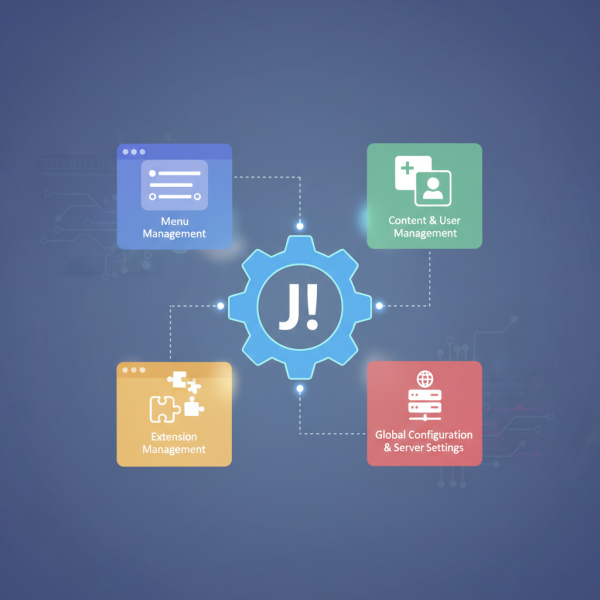
Joomla's extensibility is one of its greatest strengths. The Extension Manager provides a centralized interface for installing, managing, updating, and uninstalling various types of extensions, including components, modules, plugins, templates, and languages. This area allows you to easily add new features, change your site's appearance, or integrate third-party services, tailoring your website to your specific needs.
Menu Management: Structuring Your Navigation
The Menu Manager is where you define and organize all the navigation menus for your website. You can create multiple menus, such as a main menu, footer menu, or user menu, and then add menu items to them. Each menu item typically links to specific content (like an article), a category blog, a contact form, or another Joomla component, providing a clear and intuitive way for visitors to navigate your site.
Content Management: Articles and Categories
The core of any website is its content, and Joomla provides powerful tools for managing it. Within the Content section, you can create, edit, and organize articles. Articles are the primary units of content on your site. Categories are used to group related articles, providing structure and making it easier for both you and your visitors to find specific information. Proper categorization is key to a well-organized and user-friendly website.
Summary
Navigating the Joomla administrator interface confidently is an achievable goal for any site owner. We've explored the central role of the Control Panel as your immediate dashboard, delved into the site-wide implications of Global Configuration's essential settings, and detailed the critical aspects of User Management, including User Groups and Access Levels, for security and collaboration. Additionally, we touched upon Extension Management for expanding functionality, Menu Management for structured navigation, and Content Management for organizing articles and categories. By understanding these key areas, you are well-equipped to efficiently administer and maintain your Joomla website.
Comprehension questions
 What is the primary function of the Joomla Control Panel, and what are two common shortcuts found there?Explain the difference between Joomla User Groups and Access Levels, providing an example of each.How does the Extension Manager contribute to expanding Joomla's functionality?
Community Poll
Next Lesson
Course Contents : Joomla Website QuickStart Guide
- >> 3.
 Navigating the Joomla Administrator