Understanding the WordPress Media Library
- -->> 1. Understanding the WordPress Media Library
What you'll learn
 Media Library FunctionalitiesWordPress ArchitectureMedia OptimizationContent Management
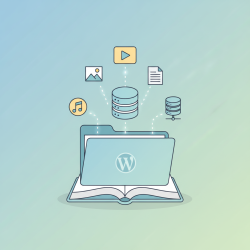
The WordPress Media Library is far more than just a simple storage solution for files; it's a powerful and integral component of the WordPress content management system. It provides a centralized hub for managing all types of media assets, including images, audio, video, and documents, that are uploaded to your website. Understanding its core functionalities and underlying architectural components is crucial for any WordPress user or developer looking to effectively manage digital assets, optimize website performance, and enhance the overall user experience.
What is the WordPress Media Library?
At its heart, the Media Library serves as a digital archive for all the files you upload to your WordPress site. When you add an image, a PDF, or a video, it gets cataloged and stored within this library. This allows you to easily access, reuse, and manage these files across various posts, pages, and other content areas of your website. It streamlines the process of incorporating multimedia into your content, making your site richer and more engaging.
Core Functionalities
The Media Library offers a range of functionalities designed to simplify media management. These tools empower users to handle their digital assets efficiently from a single, intuitive interface.
- Uploading Media: The most basic function involves uploading files from your computer directly to your WordPress site. This can be done individually or in bulk, supporting various file types commonly used on the web.
- Editing Images: WordPress provides basic image editing tools within the library. Users can crop, scale, rotate, and flip images. This eliminates the need for external software for minor adjustments, improving workflow efficiency.
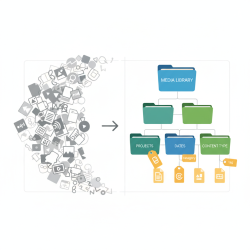
- Organizing and Searching: The library allows for robust organization. Media items can be filtered by type (images, audio, video, unattached), by date, or searched by title and alt text. This makes locating specific assets quick and straightforward, especially on sites with extensive media collections.
- Attachment Details: Each media item has a dedicated details screen where users can view and edit metadata. This includes the title, caption, alt text, and description, all of which are vital for SEO and accessibility.
- Inserting into Content: Media items can be easily inserted into posts and pages using the block editor. WordPress automatically handles responsive sizing and allows for alignment and linking options directly from the editor.
Architectural Components
To fully grasp the power and capabilities of the Media Library, it's essential to look at its underlying architecture. This involves how files are stored, how their data is managed, and the functions that facilitate its operations.
Database Integration
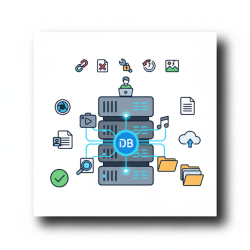
When a file is uploaded, WordPress creates a corresponding entry in the database. Specifically, the main details of each media item are stored in the wp_posts table, where they are assigned a post_type of 'attachment'. This includes the file's title, description, and other primary attributes. Additional metadata, such as image dimensions, file size, and EXIF data, is stored in the wp_postmeta table, linked to the attachment ID. This database integration ensures that media assets are treated much like any other post type, allowing for consistent data management and retrieval.
File System Structure
While database entries manage the media item's data, the actual media files reside on your server's file system. By default, WordPress stores uploaded files in the wp-content/uploads directory. To maintain organization and prevent an overwhelming number of files in a single folder, WordPress typically organizes these uploads into date-based subdirectories (e.g., /wp-content/uploads/YYYY/MM/). For images, WordPress also automatically generates multiple resized versions (thumbnails, medium, large, etc.) during upload, saving them alongside the original file. These generated sizes are crucial for serving appropriately sized images across different devices and contexts, improving load times.
PHP Functions and Hooks
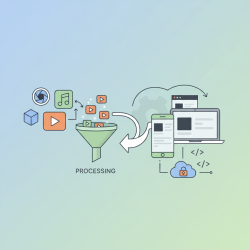
The Media Library's functionality is powered by a suite of PHP functions and action/filter hooks. Functions like wp_handle_upload() manage the upload process, while wp_generate_attachment_metadata() creates the necessary database entries and image sizes. Developers can utilize hooks such as upload_mimes to allow additional file types or image_resize_dimensions to customize generated image sizes, offering extensive extensibility and control over how media is handled and processed.
Optimizing Your Media Library
An optimized Media Library is key to a fast-loading and accessible website. Poorly managed media can significantly impact performance.
- Image Optimization: Always optimize images before uploading them. This involves compressing images to reduce file size without significant loss of quality. Using modern formats like WebP can further enhance performance.
- Descriptive Alt Text and Captions: Fill in the alt text for every image. This is vital for SEO, as search engines use it to understand image content, and for accessibility, providing descriptions for visually impaired users. Captions offer additional context to human readers.
- Consistent Naming Conventions: Use clear, descriptive file names before uploading.
Comprehension questions
 What are the primary functions of the WordPress Media Library, beyond just file storage?How does the WordPress Media Library integrate with both the database and the file system?What are three key strategies for optimizing media within your WordPress site to improve performance?Name two important architectural components that contribute to the extensibility of the Media Library.
Review Quiz
Next Lesson

Course Contents : WordPress Media: Asset Management for Developers
- >> 1.
 Understanding the WordPress Media Library