Media Configuration for Performance and Security
- -->> 7. Media Configuration for Performance and Security
What you'll learn
 Core Media SettingsImage Pre-OptimizationEssential PluginsMedia Security
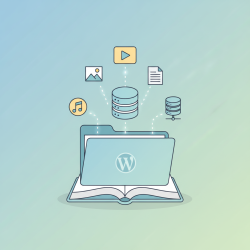
Efficient media handling is crucial for any WordPress website, impacting everything from page load speed and user experience to SEO rankings and security. A poorly configured media library can lead to slow websites, frustrated visitors, and potential vulnerabilities. This article will guide you through essential WordPress settings and plugin configurations to ensure your media is optimized for performance and secured against common threats, allowing your website to run smoothly and effectively.
WordPress Core Media Settings
The default WordPress settings provide a foundational level of media control. Navigating to "Settings" > "Media" in your WordPress dashboard reveals options that directly influence how images are handled upon upload. Understanding and adjusting these can significantly impact your site's performance.
One of the most important aspects here is defining image sizes. WordPress automatically generates multiple versions of each uploaded image: a thumbnail, a medium size, and a large size. You can customize the dimensions for these:
- Thumbnail size: Typically used for small previews, archives, or related posts. Setting appropriate dimensions (e.g., 150x150 pixels, often cropped) is key.
- Medium size: Suitable for embedding in post content without being excessively large. A common setting might be 300x300 pixels, or slightly larger depending on your theme's content width.
- Large size: Intended for larger display within content. This should be set carefully, ideally matching your theme's main content area width to prevent unnecessary scaling. Avoid making this excessively large if you don't require full-resolution images for display, as it can still consume resources.
Ensure the "Organize my uploads into month- and year-based folders" checkbox is ticked. This setting helps maintain a tidy media library, making it easier to manage and locate files, especially for sites with a vast collection of media. While seemingly minor, a well-organized file structure can aid in database management and backup processes.
Optimizing Images Before Upload
The first line of defense for media optimization happens before you even upload a file to WordPress. Preparing your images off-site can drastically reduce file sizes without sacrificing visual quality, leading to faster load times.
Always resize images to the maximum dimensions they will be displayed on your website. Uploading a 4000-pixel wide image only to display it at 800 pixels is wasteful. Use image editing software like Photoshop, GIMP, or even free online tools to scale images down to a sensible maximum width before uploading.
Beyond resizing, image compression is vital. There are two main types: lossless and lossy. Lossless compression reduces file size without any loss of quality, while lossy compression achieves greater file size reductions by discarding some image data, which can result in minor quality degradation that is often imperceptible to the human eye. For web use, a good balance of quality and file size is often achieved with slight lossy compression.
Consider the file format. JPEG is ideal for photographs and images with many colors due to its efficient compression. PNG is better for images with transparency or sharp lines, like logos and graphics. For modern browsers, WebP is an excellent choice as it provides superior compression compared to JPEG and PNG, often resulting in significantly smaller file sizes without noticeable quality loss. Many optimization plugins can convert images to WebP on the fly.
Essential Media Handling Plugins
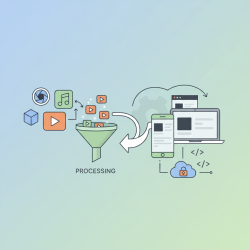
While core settings provide a baseline, dedicated plugins elevate media handling to the next level. These tools automate optimization, enhance library management, and integrate advanced features.
Image Optimization Plugins: Plugins like Smush, Imagify, and EWWW Image Optimizer automatically compress images upon upload and can even optimize existing media in your library. They often offer WebP conversion, lazy loading features, and options for lossless or lossy compression. Implementing one of these is non-negotiable for performance-focused sites.
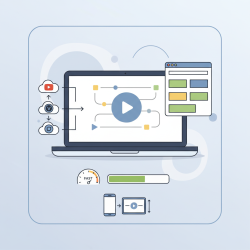
Lazy Loading: Modern WordPress versions include native lazy loading, but dedicated lazy loading plugins or features within optimization plugins can provide more granular control and potentially better results. Lazy loading defers the loading of images until they are about to enter the user's viewport, improving initial page load times.
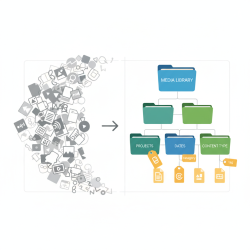
Media Library Organization: For websites with hundreds or thousands of media files, a plugin like Enhanced Media Library or folders for WP Media Library can transform your media management. They allow you to categorize files, create folders, and filter your library more effectively, saving time and frustration.
CDN Integration: A Content Delivery Network (CDN) can dramatically speed up media delivery by serving files from servers geographically closer to your users. Plugins such as WP Rocket or even dedicated CDN plugins can integrate your media with services like Cloudflare or KeyCDN, significantly offloading your server and improving global performance.
Security Best Practices for Media
Beyond performance, media handling also involves critical security considerations. The /wp-content/uploads/ directory is a common target for attackers, so securing it is paramount.
File Permissions: Ensure your file permissions are set correctly. Typically, folders should be 755 and files 644. Incorrect permissions can allow attackers to write malicious code or execute scripts within your uploads directory. Regularly check these permissions, especially after migrations or server changes.
Disable PHP Execution: A common exploit involves uploading a malicious PHP file disguised as an image. You can prevent PHP files from executing in your uploads directory by adding a rule to your .htaccess file (if you are on an Apache server) or your Nginx configuration. This critical step adds a layer of protection against backdoor uploads.
Restrict Upload Types: While WordPress has a whitelist for allowed file types, some plugins might expand this. Be cautious about allowing exotic file types unless absolutely necessary. Limiting uploads to common image and document formats reduces the attack surface.
Regular Security Scans: Implement a robust security plugin like Wordfence or Sucuri. These plugins offer file integrity monitoring, malware scanning, and firewall protection, helping to detect and prevent unauthorized modifications or malicious uploads to your media library.
Summary
Configuring WordPress for optimal media handling is a multi-faceted process that significantly boosts website performance and security. We've covered the importance of adjusting WordPress's core media settings for image sizes and organization, emphasizing the efficiency gained by optimizing images before they are even uploaded. Key strategies include resizing, appropriate compression, and selecting modern file formats like WebP. Furthermore, the article highlighted indispensable plugins for automated image optimization, lazy loading, media library management, and CDN integration. Finally, crucial security best practices were discussed, including proper file permissions, disabling PHP execution in upload directories, restricting file types, and utilizing security plugins. By implementing these recommendations, you can ensure your WordPress media contributes positively to both user experience and site robustness.
Comprehension questions
 What are the three main image sizes WordPress automatically generates, and why is it important to customize their dimensions?Name three strategies for optimizing images *before* uploading them to WordPress.Which types of plugins are considered essential for advanced WordPress media handling and why?Describe two critical security best practices for the WordPress uploads directory to prevent malicious activity.
Review Quiz
Next Lesson

Course Contents : WordPress Media: Asset Management for Developers
- >> 7.
 Media Configuration for Performance and Security