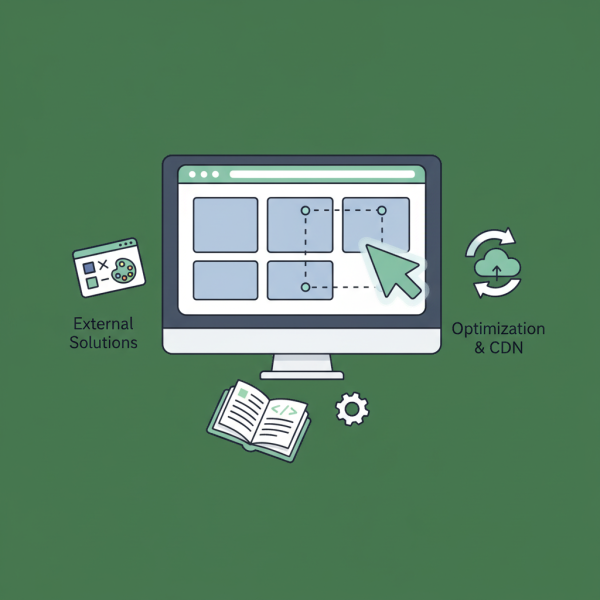
Advanced Image Cropping and Resizing
- -->> 3. Advanced Image Cropping and Resizing
What you'll learn
 WordPress image editingCropping techniquesExternal image toolsImage optimization
For WordPress users, mastering image manipulation is not just about aesthetics; it's also crucial for website performance, user experience, and SEO. While WordPress offers fundamental tools for managing media, understanding how to leverage its built-in cropping and resizing features, alongside knowing when to turn to more advanced external solutions, can significantly elevate your site's visual appeal and overall efficiency.
Understanding WordPress's Built-in Image Editor
WordPress comes equipped with a basic yet powerful image editor accessible directly from your Media Library. When you upload an image, you can click on it and then select the 'Edit Image' button to reveal a suite of manipulation tools. This interface allows you to perform essential tasks such as rotating, flipping, scaling, and cropping your images.
The scaling option lets you adjust the overall dimensions of an image, which is vital for maintaining consistent sizes across your site and reducing file sizes. Cropping, on the other hand, allows you to select a specific portion of the image to keep, effectively changing its aspect ratio and focusing on key elements. You can define a custom selection area or use predefined aspect ratios.
WordPress also automatically generates several default image sizes (thumbnail, medium, large) upon upload. You can manage these default sizes via Settings > Media, and even add custom image sizes through your theme's `functions.php` file, giving you greater control over how images are displayed throughout your site.
The Nuances of Cropping and Resizing within WordPress
When cropping within WordPress, you can drag to create a selection box. For more precision, you can manually enter specific dimensions in the selection field. This is particularly useful for maintaining consistent image dimensions for banners, user avatars, or gallery layouts. Similarly, when resizing, you can enter new width and height values, or scale by a percentage, ensuring the image fits your layout without distortion.
It's important to consider the 'Apply changes to' options after editing an image. You can choose to apply changes to all image sizes, thumbnails only, or all sizes except the thumbnail. This flexibility allows you to selectively update image renditions without affecting other instances where the original image might be used.
Limitations of Native WordPress Tools
While WordPress's built-in editor is convenient for quick adjustments, it does have its limitations. It lacks advanced features like content-aware scaling, non-destructive editing (where the original image remains untouched), or sophisticated layer management. For users needing batch processing, intricate selections, or highly precise pixel-level adjustments required by professional design, the native tools may fall short. Furthermore, complex graphics tasks, such as combining multiple images or applying intricate filters, are beyond its scope.
Exploring External Solutions for Advanced Image Manipulation
When WordPress's native capabilities aren't enough, a wealth of external solutions can provide the precision and power needed for professional-grade image editing. These tools offer a broader range of features, catering to different skill levels and specific project requirements.
Desktop Image Editors
- Adobe Photoshop: The industry standard, offering unparalleled control over every aspect of an image, including layers, masks, advanced selection tools, and non-destructive editing workflows. It's ideal for intricate cropping, complex compositions, and high-fidelity retouching.
- GIMP (GNU Image Manipulation Program): A powerful open-source alternative to Photoshop, offering many similar features for free. It supports a wide array of file formats and provides robust tools for both basic and advanced image manipulation.
Online Graphic Design Tools
- Canva: A user-friendly online platform that simplifies graphic design, including image cropping and resizing, with drag-and-drop functionality and access to extensive templates and stock photos. It's excellent for creating visually appealing graphics quickly without deep design expertise.
- Pixlr: Offers both a basic editor (Pixlr X) and a more advanced Photoshop-like editor (Pixlr E) directly in your browser. It's a great option for quick edits and applying filters without needing to download software.
WordPress Plugins for Enhanced Image Management
Several plugins extend WordPress's image capabilities, often focusing on optimization and automation:
- Regenerate Thumbnails: Useful when you change your theme or custom image sizes, as it allows you to regenerate all existing thumbnails to the new dimensions.
- Smush or ShortPixel Image Optimizer: While primarily optimization plugins, they often include advanced resizing and compression features that can be configured to automatically process images upon upload, ensuring they are web-ready without manual intervention.
- Image Crop & Resize by WP Media: Provides more advanced cropping tools within the WordPress dashboard, offering finer control over aspect ratios and selection areas than the default editor.
Best Practices for Image Optimization and Workflow
Regardless of the tools you use, adopting best practices for image handling is critical:
- Prepare Before Upload: Whenever possible, crop and resize images to their target dimensions *before* uploading them to WordPress. This reduces server load and ensures smaller file sizes from the start.
- Choose the Right Format: Use JPEG for photographs, PNG for images with transparency or sharp lines, and consider WebP for superior compression and quality on supported browsers.
- Optimize File Size: Even after resizing, compress images without sacrificing quality using tools or plugins to ensure fast loading times.
- Add Alt Text: Always include descriptive alt text for accessibility and SEO.
- Consider CDNs: For large sites, a Content Delivery Network (CDN) can deliver images faster by serving them from geographically closer servers.
Conclusion
Mastering image cropping and resizing in WordPress is an essential skill for anyone managing a website. By understanding and effectively utilizing WordPress's built-in tools for everyday tasks, and knowing when to leverage the precision and advanced features offered by external desktop software, online editors, or specialized plugins, you can ensure your website's imagery is not only visually stunning but also optimized for performance and user experience. A strategic approach to image manipulation will ultimately contribute to a more professional, engaging, and efficient online presence.
Comprehension questions
 What are the primary image manipulation tools available in WordPress's Media Library?When might a user need to look beyond WordPress's built-in image editor for advanced tasks?Name two types of external solutions discussed for precise image manipulation.Why is it important to optimize images *before* uploading them to WordPress?
Review Quiz
Next Lesson

Course Contents : WordPress Media: Asset Management for Developers
- >> 3.
 Advanced Image Cropping and Resizing