Uploaded Document Management in WordPress
- -->> 5. Uploaded Document Management in WordPress
What you'll learn
 WordPress Document UploadDisplaying PDFs and DocumentsAdvanced Document ManagementWebsite Organization and Accessibility
Effectively managing PDF files and other document assets within a WordPress website is crucial for many businesses and individuals. Whether you're sharing reports, brochures, user manuals, or educational materials, the ability to seamlessly upload, display, and organize these documents directly impacts user experience and content accessibility. This guide will walk you through the essential steps and best practices for handling various document types, ensuring your WordPress site remains organized, professional, and user-friendly when it comes to document assets.
The Importance of Effective Document Management
A well-structured approach to document management on your WordPress site offers numerous benefits. It enhances the professional appearance of your website, making it easier for visitors to find and access the information they need. Disorganized files can lead to frustration, increased bounce rates, and a perception of unreliability. Proper management also aids in SEO, as search engines can better index well-organized content, including downloadable assets.
Beyond user experience, efficient document handling streamlines your own content creation workflow. Quickly locating and updating files saves time and reduces errors. It ensures consistency across your digital assets and provides a central repository for all important documents related to your website's purpose.
Uploading Documents to WordPress
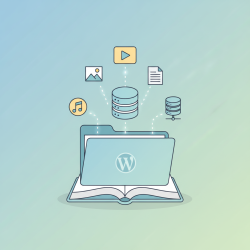
The primary method for adding documents to your WordPress site is through its built-in Media Library. This feature acts as a central repository for all your media files, including images, videos, audio, and documents.
Using the Media Library
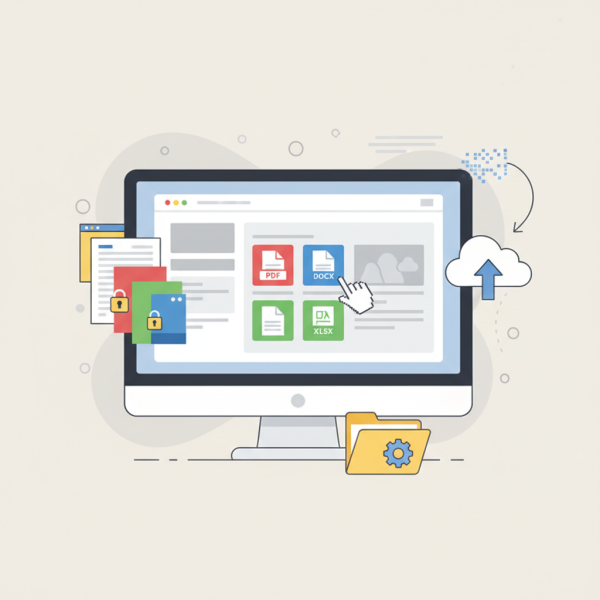
To upload a document, navigate to "Media" > "Add New" in your WordPress dashboard. You can then drag and drop your files into the designated area or click "Select Files" to browse your computer. Once uploaded, each document receives a unique URL, which can be used for linking or embedding.
After uploading, it's good practice to fill in the attachment details such as "Title," "Alt Text" (though less critical for PDFs than images, a descriptive title helps), and "Description." These details improve accessibility and searchability within your media library.
Considerations for File Types and Sizes
WordPress supports a wide array of document types by default, including PDFs, DOCX, XLSX, PPTX, and more. When uploading, keep the following in mind:
- File Size Optimization: Large documents can significantly slow down your website. Always try to compress PDFs and other documents before uploading to ensure faster load times without compromising readability.
- Upload Limits: Be aware of your hosting provider's maximum upload size. If you frequently handle very large files, you might need to adjust PHP settings (
upload_max_filesize,post_max_size) or consult your host. - Security: Ensure documents do not contain malicious scripts or sensitive metadata. Always source documents from trusted origins.
Displaying PDFs and Documents on Your Website
Once your documents are uploaded, you have several options for how to present them to your website visitors.
Embedding PDFs
For PDFs, embedding allows users to view the document directly within the page without downloading it first. WordPress 5.0+ and the Block Editor offer a native "File" block. When you add this block and select a PDF from your Media Library, it automatically provides an option to "Show embed button" or "Embed" the document, typically using your browser's default PDF viewer. This creates a preview directly on your page.
For more advanced embedding features, such as custom viewers, page navigation, or specific display settings, numerous third-party plugins are available. These plugins often provide shortcodes or dedicated blocks that offer greater control over the embedded PDF's appearance and functionality.
Linking to Document Downloads
The simplest way to offer a document is by providing a direct link for download. You can achieve this by linking text or an image (e.g., a "Download PDF" button) directly to the document's URL from your Media Library. When a user clicks this link, the document will either open in their browser (for PDFs) or prompt a download, depending on their browser settings and the file type.
Creating Document Galleries
If you have multiple related documents, a document gallery can present them in an organized and visually appealing manner. While WordPress doesn't have a native "document gallery" feature like it does for images, plugins can extend this functionality. These plugins often allow you to display a grid of document thumbnails, titles, and download links, making it easy for users to browse a collection of files.
Advanced Document Management Techniques
To further enhance your document handling, consider these more advanced strategies.
Categorization and Tagging
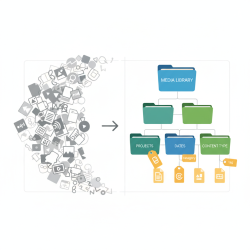
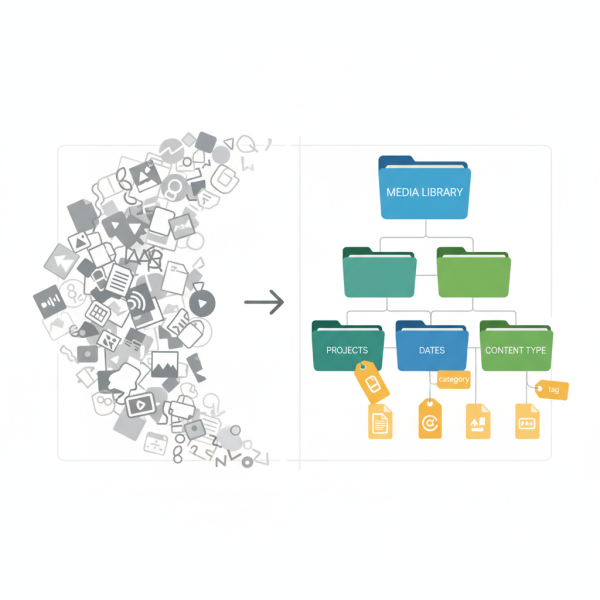
Just like posts and pages, documents can benefit from categorization and tagging. While the WordPress Media Library itself has limited organizational features, plugins can introduce custom taxonomies for media files. This allows you to group documents by department, topic, year, or any other relevant criteria, significantly improving internal search and management, especially for sites with hundreds or thousands of documents.
Security and Access Control
Restricting access to certain documents is often necessary for sensitive or premium content. Consider these options:
- User Role-Based Access: Utilize plugins to grant access only to specific user roles (e.g., subscribers, members) who are logged in.
- Password Protection: Some plugins allow you to password-protect individual documents or folders, providing a simple layer of security.
- Prevent Hotlinking: Implement measures to prevent other websites from directly linking to your documents, preserving your bandwidth and content ownership.
Version Control
For frequently updated documents, managing different versions can become complex. While WordPress itself doesn't offer robust version control for media files, some advanced document management plugins integrate this feature. This allows you to keep a history of revisions, revert to previous versions, and ensure you're always presenting the most current information to your audience.
Conclusion
Effectively managing PDF and other document assets in WordPress is a fundamental aspect of building a professional and functional website. By utilizing the Media Library for uploads, intelligently choosing between embedding and linking for display, and implementing advanced strategies like categorization and access control, you can create a seamless experience for your visitors. These practices not only improve user satisfaction but also contribute to a more organized and maintainable website backend, ensuring your digital assets are always at their best.
Comprehension questions
 What is the primary method for uploading documents to a WordPress site?Name two different ways to display a PDF document on a WordPress page.Why is file size optimization important when uploading documents to WordPress?What are two advanced techniques mentioned for managing documents beyond basic uploading and display?
Community Poll
Next Lesson
Course Contents : WordPress Media: Asset Management for Developers
- >> 5.
 Uploaded Document Management in WordPress