Troubleshooting Issues with Media Assets
- -->> 10. Troubleshooting Issues with Media Assets
What you'll learn
 Diagnosing Upload ProblemsResolving Display ErrorsManaging Media OrganizationPreventative Best Practices
The media library is the backbone of any content-rich website, serving as the central repository for all images, videos, audio files, and documents. When it functions smoothly, content creation and management are seamless. However, encountering issues with media uploads, display, or organization can be incredibly frustrating, disrupting workflow and impacting user experience. From mysterious error messages during uploads to images failing to appear on your live site, these problems often stem from a range of underlying causes, including server configurations, file permissions, database inconsistencies, or even theme and plugin conflicts. Understanding how to diagnose and effectively resolve these common media library issues is an essential skill for any website administrator or content creator, ensuring your digital assets are always available and presented correctly.
Understanding Media Library Fundamentals
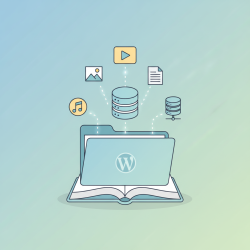
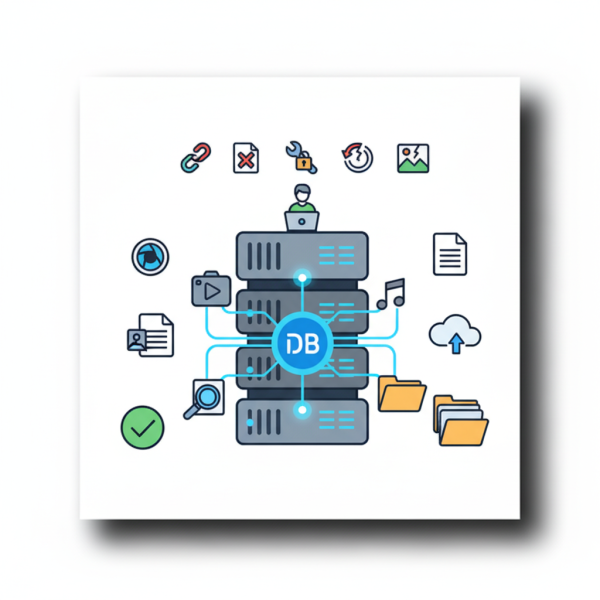
At its core, a media library is more than just a folder of files. It involves a sophisticated interplay between your server's file system and your website's database. When you upload a file, it's typically stored in a designated directory on your server (e.g., wp-content/uploads for WordPress), and simultaneously, metadata about that file—like its name, type, size, and location—is recorded in your website's database. This dual storage mechanism allows your website to quickly retrieve and display media, but it also means that issues can arise from either the file system or the database side, or both.
Common issues often relate to the path where files are stored, the permissions allowing the web server to write to these folders, and the database entries linking your content to the correct media items. A fundamental understanding of this process is the first step toward effective troubleshooting.
Common Upload Problems and Solutions
Media upload failures are among the most frequently reported issues. These can manifest as generic error messages or files simply failing to appear. Diagnosing these often involves checking several key areas of your server and website configuration.
File Size and Type Restrictions
Many servers have default limits on the maximum file size that can be uploaded via HTTP. If your image or video exceeds this limit, the upload will fail. Similarly, some systems restrict the types of files allowed for security reasons. You might see errors like "The uploaded file exceeds the upload_max_filesize directive in php.ini" or "Sorry, this file type is not permitted for security reasons."
- Solution: For file size, you typically need to increase values like
upload_max_filesizeandpost_max_sizein your server'sphp.inifile. For file types, ensure the MIME type is allowed, sometimes requiring configuration in your website's settings orwp-config.phpfor platforms like WordPress. Contacting your hosting provider is often the quickest way to adjust these server-level settings.
Permissions Errors
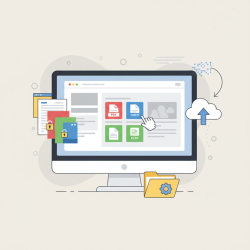
Incorrect file and folder permissions are a very common culprit. The web server process needs appropriate read and write access to the uploads directory to store new files. If permissions are too restrictive, uploads will fail silently or with an access denied message.
- Solution: Ensure your uploads folder (and its subdirectories) has the correct permissions. Commonly, directories should be
755and files644. These can usually be adjusted via an FTP client or your hosting control panel's file manager.
Server Memory and Timeouts
Large files, especially images requiring extensive processing (like thumbnail generation), can consume significant server memory or exceed execution time limits. This can lead to incomplete uploads or a white screen of death.
- Solution: Increase
memory_limitandmax_execution_timein yourphp.ini. If the issue persists, consider optimizing large media files before upload using external tools.
Display and Thumbnail Generation Issues
Even if an upload succeeds, issues can arise when trying to display the media on your site or generate its various sized thumbnails.
Thumbnails Not Generating
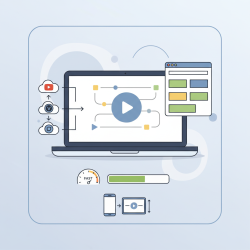
When you upload an image, most content management systems (CMS) automatically generate several smaller versions (thumbnails) for different uses. If these don't appear, it often points to a problem with image processing libraries or memory.
- Solution: Verify that necessary image libraries (like GD Library or ImageMagick) are installed and enabled on your server. Check
memory_limitagain, as image processing can be resource-intensive. Rebuilding thumbnails using a plugin can sometimes resolve existing issues after configuration changes.
Images Not Appearing on the Front-End
Broken image icons or blank spaces where images should be displayed usually indicate incorrect file paths or issues with how the front-end is rendering them.
- Solution: Inspect the image URL in your browser's developer tools. Does it point to the correct location? Is the file actually present at that location on the server? Sometimes, database migrations or domain changes can cause old URLs to persist. A search-and-replace operation on your database might be needed to update old media URLs. Theme or plugin conflicts can also interfere with image rendering; try deactivating them systematically to identify the culprit.
Organization and Management Challenges
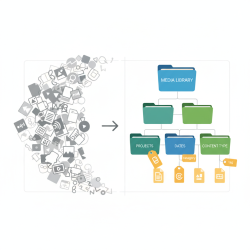
A burgeoning media library can quickly become unwieldy, making it difficult to find, categorize, and utilize assets efficiently.
Difficulty Locating Files
Without a consistent naming convention, proper tagging, or categorization, finding a specific image or document amidst thousands can be a daunting task.
- Solution: Implement a strict naming convention (e.g.,
product-name-feature.jpg). Utilize alt text and captions effectively not just for accessibility, but also for searchability within your media library. Explore plugins that offer enhanced media categorization or folder structures.
Duplicate Files and Database Bloat
Over time, redundant uploads or poor management can lead to multiple copies of the same file, unnecessarily consuming storage space and bloating your database with redundant entries, which can affect performance.
- Solution: Regularly audit your media library. Tools and plugins are available to identify and remove duplicate files. Consider compressing images before upload to reduce their footprint.
Best Practices for Prevention
Proactive measures can significantly reduce the frequency and severity of media library issues.
- Regular Backups: Always have a reliable backup strategy in place for both your website files and database. This is your safety net.
- Optimize Before Upload: Compress images and videos to appropriate web-friendly sizes and formats before uploading. This reduces server load and storage space.
- Monitor Server Health: Keep an eye on your server's disk space, memory usage, and CPU load. Adequate resources are crucial for smooth media operations.
- Descriptive File Naming: Use clear, concise, and descriptive file names that reflect the content of the media. Avoid generic names like
image1.jpg. - Utilize Alt Text and Captions: Fill out alt text for all images, not only for accessibility but also for internal searchability and SEO.
- Regular Cleanup: Periodically review your media library to delete unused or orphaned files.
Summary
Effectively managing your website's media library is crucial for a smooth user experience and efficient content management. We've explored common challenges ranging from upload failures due to file size, type restrictions, or permissions issues, to display problems stemming from incorrect thumbnail generation or broken image paths. We also delved into organizational hurdles such as locating files and dealing with duplicates. By understanding the interplay between your server and database, implementing solutions like adjusting server configurations, correcting permissions, and utilizing best practices for file naming and optimization, website administrators can significantly reduce frustrating media-related issues and maintain a robust, functional, and organized media library.
Comprehension questions
 What are the two main components involved in a website's media library, and how do they interact?Name three common reasons for media upload failures and their corresponding solutions.Besides incorrect file paths, what is a frequent cause for images not displaying correctly on the front-end of a website?List two best practices for preventing media library issues related to organization and performance.
Review Quiz
Next Lesson
Course Contents : WordPress Media: Asset Management for Developers
- >> 10.
 Troubleshooting Issues with Media Assets