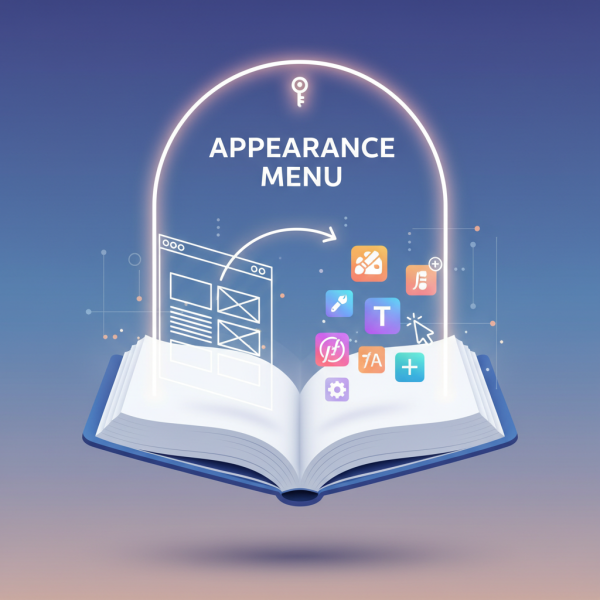
Appearance Menu and Your Website's Visual Identity
- -->> 5. Appearance Menu and Your Website's Visual Identity
What you'll learn
 Theme CustomizationWidget ManagementNavigation MenusAdvanced Theme Editing
Understanding the Appearance Menu
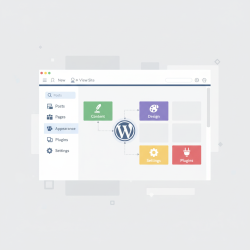
The Appearance menu is the gateway to personalizing a website's look and feel, offering powerful tools to transform a generic template into a unique digital presence. From fundamental design choices to intricate layout adjustments, mastering this section is crucial for anyone looking to exert full creative control over their site. It's where the visual identity truly takes shape, allowing users to tailor themes, manage dynamic content blocks, configure navigation, and even delve into code for advanced modifications.
The Foundation: Themes and Their Management
Themes dictate the overall design, layout, and functionality of your website. They are the primary determinant of your site's aesthetic appeal. Understanding how to select, install, and manage themes is the first step in effective customization.
Accessing themes involves navigating to Appearance > Themes. Here you'll see your installed themes. You can add new themes by clicking "Add New," browsing the extensive theme directory, or uploading a theme file from your computer.
Once installed, themes can be activated with a single click. It's always wise to preview a theme before activating it fully, especially on a live site, to ensure it meets your expectations and doesn't disrupt existing content.
Child Themes: A critical concept for advanced users is the child theme. A child theme inherits the functionality and styling of another theme, known as the parent theme. This allows you to modify the site's design and add custom functionalities without altering the parent theme's files directly. If the parent theme updates, your customizations in the child theme remain intact, preventing loss of work. This is a fundamental best practice for long-term website maintenance and robust customization.
Dynamic Content Blocks: Mastering Widgets
Widgets are small blocks of content that can be placed in specific, pre-defined areas of your theme, commonly known as widget areas or sidebars. They are designed to add dynamic features and content to your site without requiring any coding knowledge.
To access widgets, navigate to Appearance > Widgets. This interface typically displays a list of available widgets on one side and your theme's designated widget areas on the other.
Adding and Arranging: To add a widget, simply drag it from the "Available Widgets" section to the desired widget area. Once in place, widgets can often be configured with specific settings, such as titles, display options, or content. You can easily rearrange them by dragging and dropping them within the widget area to change their display order.
Common Widget Types include:
- Text: For custom HTML, plain text, or shortcodes.
- Image: To display a single image.
- Recent Posts: Lists your latest articles.
- Categories: Shows a list of your post categories, often as links.
- Search: Provides a search bar for your site's content.
- Navigation Menu: Displays a custom menu you have created.
- Calendar: A small calendar displaying post dates.
- Archives: Links to monthly archives of your posts.
Guiding Your Visitors: Custom Menus
Menus are essential for site navigation, helping visitors find the content they need quickly and efficiently. The Appearance > Menus section allows you to create and manage custom navigation structures tailored to your site's layout and content.
Creating a New Menu: Start by giving your menu a descriptive name. Then, you can add various items to it from the left-hand panel. These items can include pages, individual posts, custom links (useful for linking to external sites or specific internal URLs), and categories.
Structuring Your Menu: Menu items can be easily reordered by dragging and dropping them. To create sub-menus (dropdowns), simply drag a menu item slightly to the right beneath its intended parent item. This intuitive hierarchical structure allows for complex but organized navigation.
Menu Locations: After building and structuring your menu, you must assign it to one of the "Menu Locations" provided by your theme. Themes typically define several locations where menus can appear, such as a Primary Menu (main navigation), Footer Menu, or a Social Menu.
Advanced Styling: The Theme Editor
The Theme Editor (accessible via Appearance > Theme File Editor) provides direct access to your theme's underlying code files. This includes critical files like style.css (for CSS), various template files (e.g., header.php, footer.php, page.php), and functions.php.
Caution: This tool is exceptionally powerful but comes with significant risk. Direct edits can easily break your site if syntax errors are introduced, and any changes made directly to a parent theme's files will be overwritten and lost upon theme updates. Exercise extreme care when using this feature.
Best Practices for Theme Editor Use:
- Always use a child theme for any custom code modifications. This crucial step protects your changes from being lost during theme updates.
- Before making any significant changes to theme files, create a complete backup of your website. This provides a safety net if something goes wrong.
- For CSS changes, first consider using the Customizer's "Additional CSS" section. It's a much safer method and provides a live preview of your changes.
- Ensure you understand the specific coding language you are editing (PHP, HTML, CSS) to avoid introducing syntax errors that could render your site inoperable.
- Familiarize yourself with the WordPress Template Hierarchy to understand which files control which parts of your site's structure and display.
Real-time Refinements: The Customizer
The Customizer (found under Appearance > Customize) is an intuitive interface that allows you to make live edits to your theme's appearance with real-time previews. It is generally the safest and most user-friendly way to adjust many theme settings without touching code directly.
Key Customization Areas available through the Customizer typically include:
- Site Identity: Uploading a logo, setting the site title, tagline, and favicon.
- Colors: Adjusting header text color, background color, link colors, and other thematic hues.
- Typography: Changing font families, sizes, and weights (the availability of these options is theme-dependent).
- Header Image: Uploading and configuring a custom header image.
- Background Image: Setting a custom background for your entire site.
- Menus: Managing and assigning menus (offering similar functionality to the dedicated Menus section, but with a live preview of changes).
- Widgets: Adding, removing, and arranging widgets in widget areas, also with a live preview.
- Homepage Settings: Choosing whether to display a static front page or your latest posts as the homepage.
- Additional CSS: A dedicated and safe area to add custom CSS rules without modifying theme files directly, offering both safety and flexibility.
Summary
Mastering the Appearance menu components is fundamental for comprehensive website customization. From selecting and managing themes and utilizing child themes for safe modifications, to arranging dynamic content with widgets, structuring intuitive navigation with custom menus, and making real-time design adjustments through the Customizer, each element plays a vital role. While the Theme Editor offers deeper control, employing best practices ensures site stability and maintainability, empowering users to craft a truly unique and functional online presence.
Comprehension questions
 What is the primary benefit of using a child theme for customization?How do widgets contribute to a website's dynamic content, and where can they be placed?When creating a custom menu, what types of items can be added, and how are sub-menus formed?What are the key risks associated with using the Theme Editor directly, and what is a safer alternative for custom CSS?
Review Quiz
Next Lesson
Course Contents : Navigating the WordPress Dashboard
- >> 5.
 Appearance Menu and Your Website's Visual Identity