Understanding the WordPress Dashboard
- -->> 1. Understanding the WordPress Dashboard
What you'll learn
 WordPress Admin Area StructureDashboard NavigationContent & Design ManagementSite Settings & Users
The WordPress dashboard serves as the central control panel for any WordPress website. It is the administrative backend where site owners and content creators manage every aspect of their online presence, from publishing content to customizing design and extending functionality. Understanding the structure and purpose of this powerful interface is fundamental for efficiently operating and maintaining a WordPress site, providing a comprehensive overview of your site's health and activity at a glance.
What is the WordPress Dashboard?
At its core, the WordPress dashboard is the administrative interface that allows you to manage your entire website without needing to touch any code. Once you log in, you are greeted by this comprehensive control panel. It acts as your mission control, providing access to all the tools and settings necessary to build, customize, and maintain your website.
The dashboard is designed for ease of use, making complex web development tasks accessible to users of all technical skill levels. Its intuitive layout empowers you to focus on creating content and engaging with your audience, rather than getting bogged down in technicalities.
Navigating the Dashboard
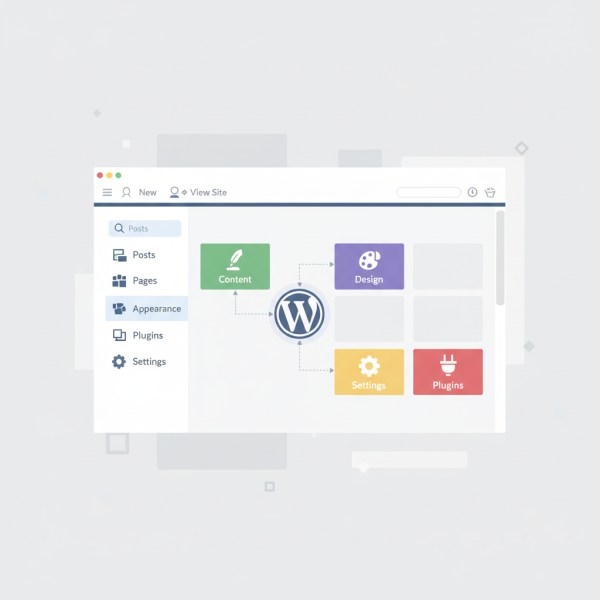
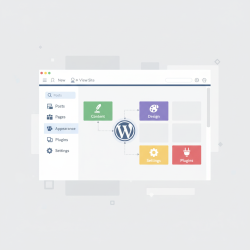
The WordPress dashboard is organized logically to facilitate easy navigation. The primary components you'll encounter are the left-hand navigation menu and the top admin bar.
- Left-Hand Navigation Menu: This vertical menu, situated on the left side of the screen, is your main gateway to all WordPress features. Each item in this menu represents a distinct section of your website's administration, such as Posts, Pages, Appearance, Plugins, and Settings. Clicking on a menu item expands to reveal sub-menu options, guiding you to specific tasks.
- Top Admin Bar: Running horizontally across the very top of your browser window, this bar provides quick links to frequently used administrative functions. It allows you to create new posts or pages, moderate comments, view your site on the front end, and access profile settings, even when browsing the live version of your website.
Core Content Management
Managing your site's content is a primary function of the WordPress dashboard. Several dedicated sections make content creation and organization straightforward.
- Posts: This section is where you'll create, edit, and manage all your blog posts. Posts are typically time-sensitive content, organized by category and tags, and displayed in reverse chronological order on your blog page. You can draft new articles, schedule them for future publication, and organize them effectively here.
- Pages: Unlike posts, pages are generally for static, timeless content such as "About Us," "Contact," or "Privacy Policy." They do not typically have categories or tags and are often organized hierarchically. This section allows you to build foundational elements of your website.
- Media: The Media Library is your central repository for all images, videos, audio files, and documents uploaded to your WordPress site. You can add new media, view existing files, edit their details (like alt text and captions), and organize them. Proper media management is crucial for site performance and accessibility.
- Comments: User engagement often comes in the form of comments on your posts. The Comments section allows you to moderate, approve, reply to, edit, or trash comments. This ensures a healthy and productive discussion environment on your site.
Site Customization and Functionality
Beyond content, the dashboard offers extensive tools for customizing your site's look and feel, and extending its capabilities.
- Appearance: This powerful section is where you control your site's visual design.
- Themes: Install new themes, activate them, and manage existing ones. Themes dictate the overall design and layout of your website.
- Customize: Access the WordPress Customizer to make real-time visual changes to your theme, such as site identity, colors, typography, and header/footer options.
- Widgets: Add, remove, and arrange widgets in designated areas (sidebars, footers) of your theme to display dynamic content like recent posts, search bars, or custom HTML.
- Menus: Create and manage navigation menus for your site, defining the links that appear in your header, footer, or other menu locations.
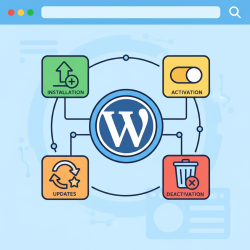
- Plugins: Plugins are essential for extending the functionality of your WordPress site. In this section, you can search for, install, activate, deactivate, and delete plugins. Whether you need SEO tools, contact forms, security enhancements, or e-commerce features, plugins offer a vast array of solutions without coding.
Site Management and Settings
The dashboard also provides comprehensive sections for managing your site's users, tools, and general settings.
- Users: This section allows you to manage all registered users on your site. You can add new users, edit existing user profiles, and assign different roles (e.g., Administrator, Editor, Author, Contributor, Subscriber), each with specific permissions.
- Tools: The Tools section provides various utilities for site management.
- Available Tools: Often empty by default, plugins can add their tools here.
- Import/Export: Migrate content to or from other WordPress installations or platforms.
- Site Health: A crucial tool that analyzes your site's configuration and performance, offering recommendations for improvements.
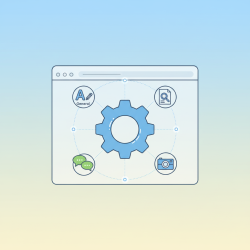
- Settings: This is arguably one of the most critical areas, controlling fundamental aspects of your WordPress installation.
- General: Set your site title, tagline, WordPress address, site address, email address, time zone, and language.
- Writing: Configure default post categories, post format, and options for posting via email.
- Reading: Determine what your site's homepage displays (latest posts or a static page) and control feed settings.
- Discussion: Manage comment settings, including moderation, blacklists, and avatars.
- Media: Define default image sizes and file upload paths.
- Permalinks: Structure the URLs for your posts and pages, which is vital for SEO and user experience.
- Privacy: Set up and manage your site's privacy policy page.
The Primary Purpose of the Dashboard
Ultimately, the primary purpose of the WordPress dashboard is to provide a single, centralized, and user-friendly interface for complete website management. It democratizes website creation and maintenance, allowing individuals and businesses alike to build and control powerful online presences without deep technical knowledge. From content publication and design customization to user management and security configurations, every vital operation flows through this administrative hub, making it an indispensable tool for any WordPress user.
Summary
In this article, we've taken a high-level tour of the WordPress dashboard, exploring its essential structure and primary purpose. We covered its role as the administrative backend, detailing navigation through the left-hand menu and top admin bar. Key sections for content management like Posts, Pages, Media, and Comments were explained, alongside areas for site customization such as Appearance (Themes, Widgets, Menus) and Plugins. Finally, we examined site management tools like Users, general Tools, and the critical Settings panel, reinforcing the dashboard's indispensable function as the central control for all WordPress operations.
Comprehension questions
 What are the two primary navigation components within the WordPress dashboard?Explain the key difference between Posts and Pages in WordPress, as managed through the dashboard.Why are Permalinks considered a critical setting within the WordPress dashboard's Settings section?
Community Poll
Next Lesson
Course Contents : Navigating the WordPress Dashboard
- >> 1.
 Understanding the WordPress Dashboard