Common Settings and Configuration
- -->> 7. Common Settings and Configuration
What you'll learn
 WordPress Site IdentityContent Display and WorkflowUser Interaction ManagementURL Structure Optimization
Understanding WordPress Settings: An Essential Guide
Navigating the various settings sections in WordPress is fundamental to effectively managing and optimizing your website. These core configuration areas allow you to define everything from your site's basic identity and how content is presented to how users interact and search engines discover your pages. Mastering these settings ensures your site functions smoothly, looks professional, and aligns with your specific goals, providing a robust foundation for any online presence.
General Settings: Your Site's Core Identity
The General Settings panel is where you establish the fundamental identity and operational parameters for your WordPress site. This section dictates crucial elements that affect your site's appearance and backend functionality.
- Site Title and Tagline: These are vital for branding and SEO. The site title typically appears in browser tabs and search results, while the tagline offers a concise description of your site's purpose.
- WordPress Address (URL) and Site Address (URL): These define where your WordPress core files are located and the address people type in their browsers to reach your site. It is critical these are configured correctly to avoid broken links or access issues.
- Administration Email Address: This is the primary email for receiving administrative notifications, such as new user registrations or comment moderation alerts.
- Membership: Toggling 'Anyone can register' allows visitors to create accounts on your site, often used for forums, e-commerce, or community sites.
- New User Default Role: If membership is enabled, this setting assigns a default role (e.g., Subscriber, Contributor) to newly registered users, determining their capabilities on your site.
- Site Language: Selects the language for your WordPress dashboard and default theme.
- Timezone, Date Format, Time Format, and Week Starts On: These settings customize how dates and times are displayed on your site, affecting post timestamps and scheduling.
Writing Settings: Crafting Your Content Flow
The Writing Settings section focuses on how you create and publish content, offering options to streamline your workflow and define default behaviors for posts.
- Default Post Category: This assigns a default category to new posts if you don't select one manually. Setting a relevant default can help maintain content organization.
- Default Post Format: Some themes support different post formats (e.g., Standard, Aside, Gallery). This sets the default format for new posts.
- Post via email: This advanced feature allows you to publish posts by sending an email to a specific address, which can be useful for mobile blogging or quick updates. It requires configuring a secret email account.
- Update Services: When you publish a new post, WordPress can automatically notify services that collect updated content, often referred to as 'pingbacks'.
Reading Settings: How Your Content is Displayed
Reading Settings control how your content is presented to visitors, particularly concerning your homepage and blog feeds. This section is crucial for defining the user's initial experience on your site.
- Your homepage displays: You can choose to show your latest posts (a traditional blog layout) or a static page (common for business websites).
- Homepage and Posts page: If you choose a static page for your homepage, you must select which existing pages serve as your homepage and your blog's main posts page.
- Blog pages show at most X posts: Determines the number of posts visible on archive and blog pages before pagination kicks in.
- Syndication feeds show the most recent X items: Controls how many posts are included in your RSS feeds.
- For each article in a feed, show: You can display the full text of a post or a summary (excerpt) in your RSS feed, impacting how subscribers consume your content.
- Search Engine Visibility: This critical option allows you to discourage search engines from indexing your site, useful during development or for private sites. Remember to uncheck it when ready to launch!
Discussion Settings: Managing User Interaction
Discussion Settings provide comprehensive controls over comments, pingbacks, and trackbacks, enabling you to manage user interactions and combat spam effectively.
- Default article settings: Decide whether to attempt to notify blogs linked from the article, allow link notifications from other blogs (pingbacks and trackbacks), and allow comments on new articles.
- Other comment settings: Options include requiring name and email, automatically closing comments after a certain period, enabling threaded (nested) comments, and paginating comments.
- Email me whenever: Receive notifications when a new comment is posted or a comment is held for moderation.
- Before a comment appears: Choose between manual approval for all comments or only requiring approval for authors without a previously approved comment.
- Comment Moderation: Set criteria for comments to be held in a moderation queue, such as the number of links allowed or specific disallowed keywords.
- Avatars: Enable and configure the display of user avatars next to their comments, often powered by Gravatar.
Media Settings: Handling Your Visual Assets
The Media Settings section is straightforward but important for how WordPress handles images and other uploaded files, affecting display and file organization.
- Image sizes: Define the default dimensions for thumbnail, medium, and large image sizes. WordPress automatically generates these sizes upon upload, optimizing them for different uses across your site.
- Uploading files: The option 'Organize my uploads into month- and year-based folders' creates a logical directory structure for your media library, making it easier to manage files.
Permalinks Settings: Crafting SEO-Friendly URLs
Permalinks, or permanent links, are the URLs to your individual posts, pages, categories, and other content. This section is vital for creating user-friendly and search engine-optimized URLs.
- Common Settings: WordPress offers several common structures:
- Plain: `?p=123` (not SEO-friendly)
- Day and name: `/2023/10/27/sample-post/`
- Month and name: `/2023/10/sample-post/`
- Numeric: `/archives/123`
- Post name: `/sample-post/` (generally most SEO-friendly and readable)
- Custom Structure: Allows you to define your own structure using available tags like `%postname%`, `%category%`, and `%year%`.
- Optional: You can set custom bases for your category and tag archives, further refining your site's URL structure for better organization and SEO.
Summary of Essential Configurations
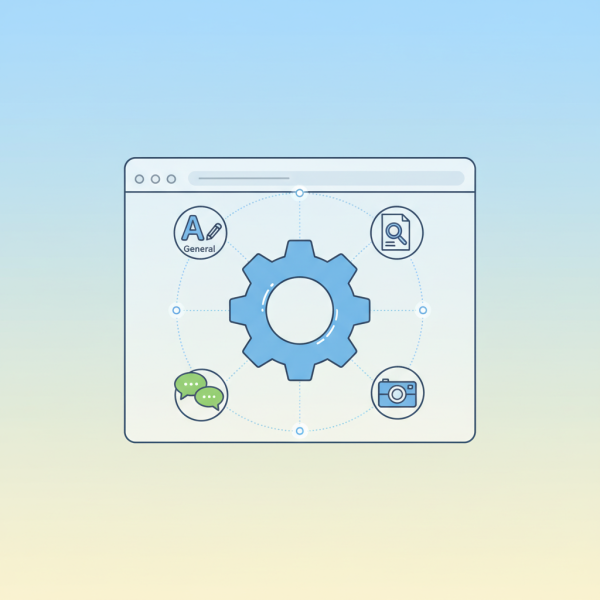
In summary, understanding and configuring WordPress settings across General, Writing, Reading, Discussion, Media, and Permalinks is paramount for any website owner. These settings collectively govern your site's identity, content creation process, how visitors consume information, how interactions are managed, the handling of visual content, and the structure of your site's URLs. By carefully tailoring each section, you can ensure your WordPress site is optimized for user experience, search engine visibility, and efficient administration, providing a stable and professional online presence.
Comprehension questions
 What are the key differences between 'WordPress Address (URL)' and 'Site Address (URL)' in General Settings?Explain the primary purpose of the 'Search Engine Visibility' option found in Reading Settings and its importance.Which Permalinks structure is generally considered the most SEO-friendly and why?What functionalities are controlled within the Discussion Settings to manage user interactions and combat spam effectively?
Community Poll
Next Lesson
Course Contents : Navigating the WordPress Dashboard
- >> 7.
 Common Settings and Configuration