Customizing the Admin UI
- -->> 10. Customizing the Admin UI
What you'll learn
 Admin UI PersonalizationScreen Options UtilityAccessibility EnhancementsWorkflow Optimization
The administrative interface of any content management system is the control center for managing your digital presence. For many users, especially those who spend significant time creating, editing, and organizing content, a generic dashboard can quickly become inefficient or even frustrating. Personalizing this environment is not merely a matter of aesthetics; it's about optimizing workflows, reducing cognitive load, and enhancing overall productivity. This article delves into the powerful capabilities of customizing the admin UI, focusing on built-in screen options and essential accessibility features that allow you to tailor the dashboard experience to your precise needs.
Understanding the Admin UI
Before diving into customization, it's helpful to understand the default structure of the admin UI. Typically, it presents a dashboard with various widgets, navigation menus, and content management screens like those for posts, pages, and media. While designed for broad usability, the default layout might include elements you rarely use or position crucial information in less-than-ideal locations for your specific tasks. Recognizing these areas for improvement is the first step towards a more efficient and personalized workspace.
Leveraging Screen Options for Dashboard Control
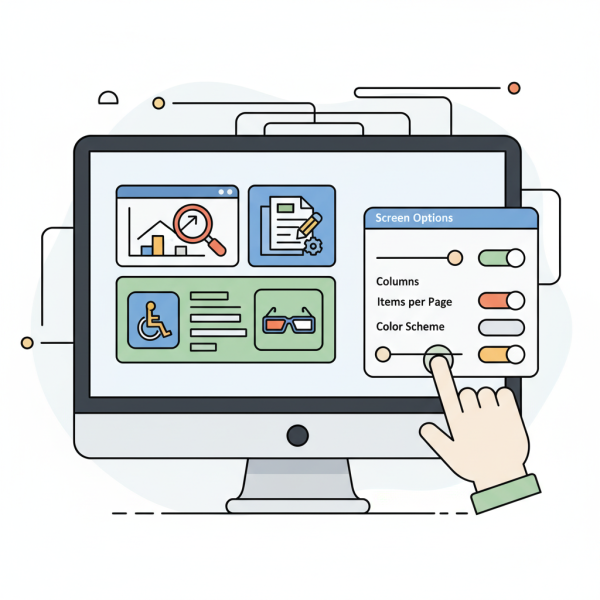
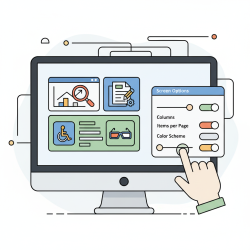
One of the most immediate and impactful ways to personalize your admin dashboard is through the "Screen Options" tab. This tab is usually found in the top-right corner of many admin screens. Clicking it reveals a dropdown panel with checkboxes and settings pertinent to the current screen. Its primary function is to give you granular control over what information is displayed and how it's organized.
Customizing Dashboard Widgets
On the main dashboard screen, "Screen Options" allows you to enable or disable various widgets. Do you find the "Quick Draft" or "Activity" widgets useful? Keep them. Are "WordPress Events and News" or "Welcome" irrelevant to your daily tasks? Simply uncheck them to remove them from view. This decluttering process is crucial for focusing on what truly matters to your workflow. By removing unnecessary distractions, you create a cleaner, more targeted overview of your site's status and quick access to essential functions.
Managing Column Visibility in Lists
Beyond the dashboard, "Screen Options" proves invaluable on list screens such as "Posts," "Pages," "Comments," or "Users." Here, you can select which columns appear in the main table. For instance, on the "Posts" screen, you might decide that the "Author" or "Categories" columns are essential for your content review process, while "Tags" or "Date" might be less critical. Toggling these visibility options helps streamline your view, making it easier to scan and manage large quantities of content without being overwhelmed by information that isn't immediately relevant.
Adjusting Pagination and Items Per Page
Another powerful setting within "Screen Options" is the ability to adjust the number of items displayed per page. Whether you're viewing a list of posts, comments, or media items, increasing this number can reduce the amount of clicking between pages, especially when performing bulk actions or reviewing many entries. Conversely, a lower number might be preferred on slower connections or for screens with very wide columns, ensuring better readability and performance. This flexibility allows users to optimize their browsing experience based on their system's capabilities and personal preferences.
Screen Layout Configuration
Some admin screens also offer options for screen layout, typically allowing you to switch between one or two-column layouts. While less common on all screens, this feature can significantly impact how information is presented, especially for users with larger monitors who might prefer a multi-column view to utilize screen real estate more effectively, or those who prefer a single, focused column to minimize eye movement. Experimenting with these layouts can lead to a more comfortable and efficient workspace tailored to your display setup.
Enhancing Accessibility for an Inclusive Experience
Beyond personal preference, accessibility features are vital for ensuring that the admin UI is usable by everyone, regardless of their physical or cognitive abilities. An inclusive admin experience benefits not just users with disabilities but also improves usability for all. Many accessibility enhancements are built directly into the core system.
Keyboard Navigation and Skip Links
For users who rely on keyboard navigation, the admin UI is designed to be fully navigable without a mouse. Elements like "Skip to content" links appear at the top of the page when navigating with a keyboard, allowing users to bypass repetitive navigation menus and jump directly to the main content area. This feature significantly improves efficiency for screen reader users and those with motor impairments.
Color Contrast and High Contrast Mode
Visual accessibility is paramount. The default admin theme is built with good color contrast in mind, but for users with visual impairments or specific color sensitivities, a high contrast mode is often available. This mode adjusts colors to maximize the difference between foreground and background elements, making text and interactive components much easier to distinguish. Ensuring adequate color contrast helps reduce eye strain and improves readability for a wider audience.
Admin Color Schemes
Users can select from several predefined admin color schemes in their "User Profile" settings. These schemes not only offer a visual customization option but can also serve an accessibility purpose. For example, some users might find a darker scheme less harsh on their eyes during extended periods of work, while others might prefer a brighter, more traditional look. Choosing a scheme that suits individual visual preferences can significantly enhance comfort and reduce fatigue.
Personal Options in User Profiles
The "Users" section, specifically the "Your Profile" screen, is a central hub for individual personalization. Here, users can adjust their visual editor settings, disable keyboard shortcuts for comments (which might conflict with assistive technologies), and select their preferred admin color scheme. These personal options empower users to configure their environment in a way that best supports their unique needs and working style, fostering a more effective and comfortable interaction with the system.
Benefits of Customization and Accessibility
The advantages of investing time in customizing your admin UI and leveraging its accessibility features are multifaceted. It leads to a more efficient workflow by presenting only relevant information, reducing distractions, and streamlining navigation. This personalization can significantly boost productivity, as users spend less time searching for controls or sifting through unnecessary data. Furthermore, an accessible admin panel ensures that everyone on your team, regardless of ability, can contribute effectively, promoting inclusivity and broader team engagement. A tailored experience translates directly into a more pleasant and productive working environment for all administrators and content creators.
Best Practices for Personalization
When customizing the admin UI, consider these best practices. Start small; identify one or two areas that cause the most friction and adjust those first. Regularly review your settings, as your workflow may evolve. In multi-user environments, encourage team members to personalize their own profiles and screen options, but also consider providing guidance or standard setups for consistency if needed. Remember that the goal is always to enhance usability and efficiency, not to overcomplicate the interface with too many changes.
Summary
Personalizing the admin dashboard experience through screen options and accessibility features is a powerful way to optimize workflows, enhance productivity, and ensure an inclusive environment for all users. By leveraging screen options to control dashboard widgets, column visibility, and pagination, users can declutter their workspace and focus on essential tasks. Simultaneously, built-in accessibility features like keyboard navigation, high contrast modes, and customizable color schemes ensure that the administrative interface is usable and comfortable for individuals with diverse needs. Embracing these customization capabilities transforms a generic admin panel into a highly efficient and personalized control center, ultimately leading to a more streamlined and enjoyable content management experience.
Comprehension questions
 Where can users typically change their preferred admin color scheme and other personal display options?
Review Quiz
Next Lesson
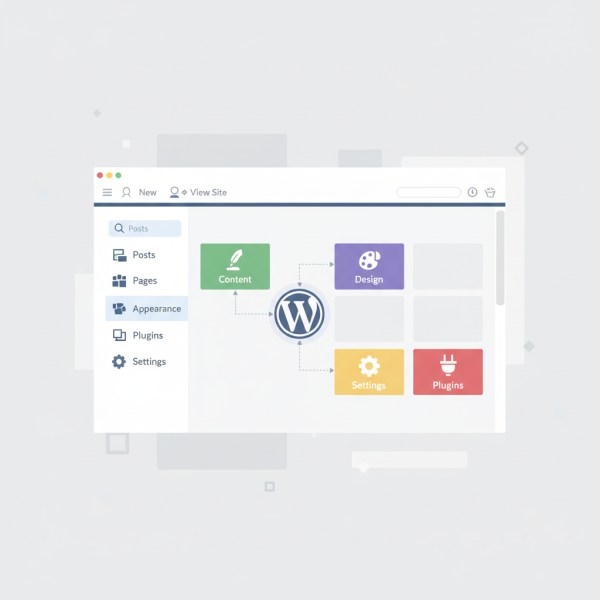
Course Contents : Navigating the WordPress Dashboard
- >> 10.
 Customizing the Admin UI