Strategies for Moving Projects Between .org and .com
- -->> 8. Strategies for Moving Projects Between .org and .com
What you'll learn
 Platform Differences (WordPress.org vs .com)WordPress.org to WordPress.com MigrationWordPress.com to WordPress.org MigrationGeneral Migration Best Practices
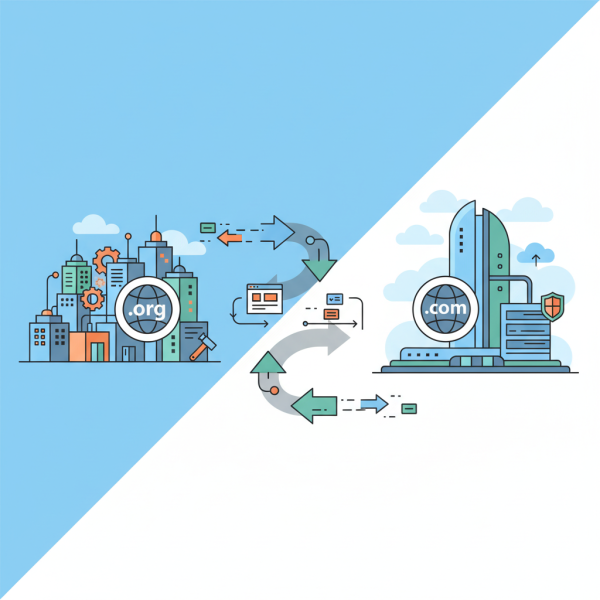
Migrating a website can seem like a daunting task, especially when dealing with the distinct ecosystems of WordPress.org and WordPress.com. While both are built on the foundational WordPress software, they offer vastly different hosting environments and levels of control. Understanding these differences and employing the correct migration strategies is crucial for a smooth transition, whether you're moving to gain more flexibility with a self-hosted solution or seeking the simplicity and managed benefits of WordPress.com.
Understanding the Platforms: WordPress.org vs. WordPress.com
Before embarking on any migration, it's essential to grasp the fundamental distinctions between WordPress.org and WordPress.com. This clarity will help in planning and executing the migration efficiently.
WordPress.org: The Self-Hosted Solution
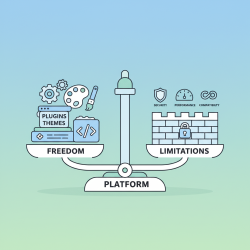
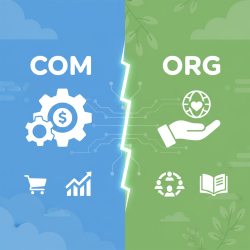
WordPress.org refers to the open-source software that you download and install on your own web server. This gives you complete control over your website. You can:
- Install any theme or plugin you desire, including custom-developed solutions.
- Access and modify the core WordPress files and database directly.
- Monetize your site through any advertising platform or e-commerce solution.
- Choose your own hosting provider, giving you flexibility in server resources and cost.
This level of control comes with the responsibility of managing updates, security, and backups yourself, or through your chosen hosting provider.
WordPress.com: The Managed Hosting Service
WordPress.com, on the other hand, is a commercial managed hosting service that uses the WordPress software. It handles all the technical aspects of running a website, such as hosting, security, and backups. It offers various plans, from free to enterprise-level, each with increasing features and flexibility.
- Lower-tier plans have limitations on themes, plugins, and custom code.
- Higher-tier business and e-commerce plans offer plugin and theme installation, bringing them closer to the flexibility of WordPress.org but within a managed environment.
- Maintenance, security, and performance optimizations are handled by WordPress.com.
The choice between them often depends on your technical expertise, budget, and specific project requirements.
Migrating from WordPress.org to WordPress.com
Moving a self-hosted WordPress.org site to WordPress.com is often pursued for the benefits of managed hosting, simplified maintenance, and robust infrastructure. This process typically involves exporting your content and importing it into your new WordPress.com site.
Key Steps:
1. Export Content from WordPress.org: Log in to your WordPress.org dashboard. Navigate to Tools > Export. Select 'All content' and download the XML file. This file contains your posts, pages, comments, custom fields, categories, and tags.
2. Import Content to WordPress.com: Log in to your WordPress.com dashboard. Go to Tools > Import. Select 'WordPress' and upload the XML file you downloaded. Follow the prompts to assign authors and import media files.
3. Review and Adjust: After the import, thoroughly check your new WordPress.com site. Verify that all content, images, and other media have transferred correctly. You may need to manually re-upload some images if they didn't import properly, especially for older sites.
4. Theme and Plugin Considerations: If your original WordPress.org site used a custom theme or specific plugins, you might need a WordPress.com Business plan or higher to replicate that functionality. Free and lower-tier plans have restrictions on custom themes and plugin installations.
5. Domain Mapping and Redirects: If you're using a custom domain, you'll need to update its DNS settings to point to your new WordPress.com site. Additionally, setting up 301 redirects from your old URLs to your new ones is crucial for preserving SEO and preventing broken links, especially if permalink structures change.
Migrating from WordPress.com to WordPress.org
Users often move from WordPress.com to WordPress.org to gain full control over their website, enable specific plugins (like advanced SEO tools or e-commerce solutions), use premium themes not available on WordPress.com, or customize the site extensively. This migration requires a bit more technical involvement.
Key Steps:
1. Choose a Web Host and Install WordPress.org: Select a reliable web hosting provider and install WordPress on your chosen domain. Most hosts offer one-click WordPress installation tools.
2. Export Content from WordPress.com: Log in to your WordPress.com dashboard. Go to Tools > Export. Choose 'Export All' content (the option to download an XML file). Confirm the export, and you'll receive a link to download your content file.
3. Import Content to WordPress.org: Log in to your new WordPress.org site's dashboard. Navigate to Tools > Import. Select 'WordPress' and install the WordPress Importer plugin if prompted. Upload the XML file. Remember to check the box to download and import file attachments to ensure your images and media transfer.
4. Install Themes and Plugins: Reinstall any themes or plugins that were active on your WordPress.com site (if applicable to your WordPress.com plan) or find suitable alternatives for your new WordPress.org setup. Customize your site's appearance to match your original design as closely as possible.
5. Permalinks and Media: Ensure your permalink structure on the new WordPress.org site matches your old WordPress.com site to prevent broken links. Check your media library to confirm all images and files are present and correctly linked.
6. Update DNS and SEO Considerations: Once you're confident your new site is fully functional, update your domain's DNS settings to point to your new web host. It's advisable to set up 301 redirects from old WordPress.com URLs to the corresponding new WordPress.org URLs to maintain SEO value and provide a seamless user experience. This can be done using plugins or server configurations.
Key Considerations for a Smooth Migration
Regardless of the direction of your migration, several universal best practices apply to minimize risks and ensure success.
- Back Up Everything: Always create a full backup of your existing site before starting any migration process. This provides a safety net if anything goes wrong.
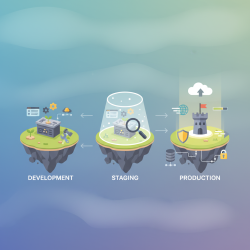
- Test Thoroughly: After the migration, meticulously test every aspect of your new site. Check all pages, posts, images, forms, and functionalities to ensure everything works as expected. Consider using a staging environment if possible.
- SEO Preservation: Implementing 301 redirects is paramount for SEO. These tell search engines that your content has moved permanently, passing on the link equity from your old URLs to your new ones. Update internal links where necessary.
- Media Handling: Pay close attention to how media files are handled during the import. Sometimes, images may not import perfectly and might require manual re-uploading or specific plugins for older sites.
- Performance Optimization: After migration, especially to WordPress.org, consider optimizing your site for performance. This includes caching, image optimization, and choosing a reliable hosting provider.
Conclusion
Migrating WordPress projects between WordPress.org and WordPress.com requires careful planning and a clear understanding of each platform's capabilities and limitations. By following structured steps for content export and import, addressing theme and plugin compatibility, and diligently managing domain settings and SEO redirects, users can achieve a smooth and successful transition. Thorough post-migration testing and having comprehensive backups are indispensable to safeguard your website's integrity and ensure continuous availability. With the right approach, transitioning your WordPress site can be a manageable and rewarding endeavor.
Comprehension questions
 What are the primary differences between WordPress.org and WordPress.com in terms of control and flexibility?What is the recommended first step before initiating any WordPress migration process?When migrating from WordPress.com to WordPress.org, what key elements should be addressed besides content import?Why are 301 redirects important to consider during a WordPress migration?
Review Quiz
Next Lesson
Course Contents : WordPress.org vs. WordPress.com
- >> 8.
 Strategies for Moving Projects Between .org and .com