Secure WordPress Backup Storage
- -->> 8. Secure WordPress Backup Storage
What you'll learn
 Local Backup AdvantagesRemote Storage StrategiesCloud Backup SecurityMulti-Layered Backup Strategy
Protecting your WordPress website is paramount, and at the core of any robust protection strategy lies a comprehensive backup plan. While creating backups is a crucial first step, where and how you store them is equally, if not more, important for ensuring their security and availability when disaster strikes. Relying on a single storage method leaves you vulnerable. This article will delve into the best practices for securely storing your WordPress backups, exploring the advantages and considerations of local, remote, and cloud storage options, and guiding you towards a resilient multi-layered approach.
Understanding Local Storage for WordPress Backups
Local storage involves saving your WordPress backups directly onto a drive connected to your computer or a network-attached storage (NAS) device within your physical location. This method offers immediate advantages in terms of speed and accessibility, as you don't rely on internet connectivity for retrieval. It's often the quickest way to restore a site if your local machine is the source of the problem or if you're developing locally.
However, local storage also comes with significant risks. It's a single point of failure; a hardware malfunction, theft, fire, or other localized disaster could destroy both your website and its backups simultaneously. This makes it an unsuitable sole solution for critical data.
Best practices for local storage include:
- Utilizing a dedicated external hard drive or a robust NAS device separate from your primary computer.
- Ensuring the storage device itself is encrypted to protect data in case of theft.
- Physically securing the storage device to prevent unauthorized access.
- Never storing local backups on the same server or hosting account as your live WordPress site.
Exploring Remote Storage Options
Remote storage takes your backups off-site, significantly reducing the risk associated with localized incidents. This category includes storing backups on a separate server, often via secure file transfer protocols, or using specialized remote backup services.
Storing backups on another web server or a virtual private server (VPS) you control is a common approach. Using SFTP (SSH File Transfer Protocol) is crucial here, as it encrypts the data transfer, unlike standard FTP. This ensures that your backup files are protected during their journey from your WordPress site to the remote server. Always ensure the remote server itself has strong security measures, including firewalls and regular updates.
Dedicated remote backup services are another excellent option. These services specialize in secure data storage and often provide features like automated backups, versioning, and simplified restoration processes. They are designed with redundancy and security at their core, abstracting many of the complexities of managing remote infrastructure yourself.
Leveraging Cloud Storage Solutions
Cloud storage has become an increasingly popular and robust option for WordPress backups due to its scalability, accessibility, and inherent redundancy. Providers like Amazon S3, Google Drive, Dropbox, and Microsoft OneDrive offer vast storage capacities, often with global distribution, meaning your data is replicated across multiple data centers.
The primary benefits of cloud storage include:
- Geographic Redundancy: Data is typically spread across multiple physical locations, protecting against regional disasters.
- Scalability: Easily expand or contract storage capacity as needed without hardware investments.
- Accessibility: Backups can be accessed from anywhere with an internet connection.
- Cost-Effectiveness: Often more affordable than maintaining your own extensive remote infrastructure.
However, security is paramount when using cloud services. While providers offer strong security, your account's configuration and access are your responsibility. Key considerations include:
Always encrypt your backup files before uploading them to the cloud. Many WordPress backup plugins offer server-side encryption or integrate with services that provide it. Use strong, unique passwords for your cloud storage accounts and enable Multi-Factor Authentication (MFA). Restrict access permissions to only those who absolutely need it, following the principle of least privilege. Regularly review your cloud provider's security policies and ensure they align with your data protection requirements. Understand where your data is geographically stored (data sovereignty laws).
The Indispensable 3-2-1 Backup Rule
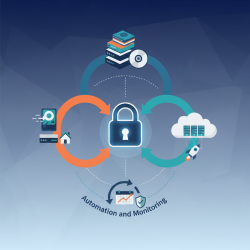
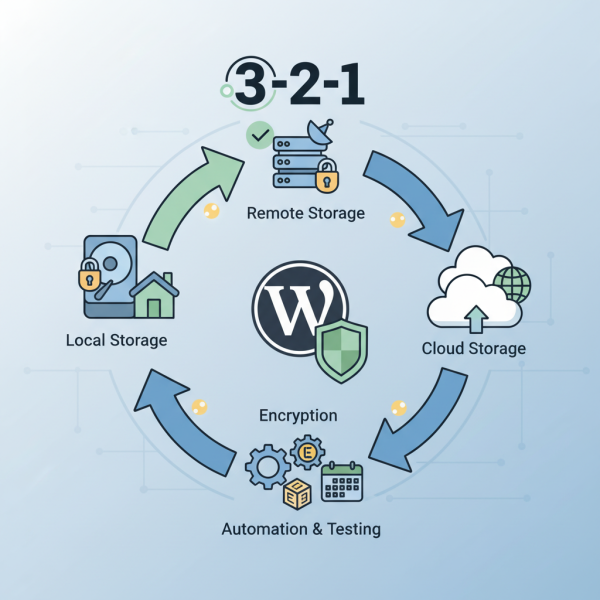
To truly achieve robust backup security and resilience, a combination of these storage methods is essential. This brings us to the widely recognized 3-2-1 backup rule, a cornerstone of data protection strategy. The rule states you should:
- Have at least 3 copies of your data. This includes your primary site and two backups.
- Store backups on at least 2 different types of media. For WordPress, this could mean your live server, an external hard drive (local), and cloud storage.
- Keep at least 1 copy off-site. This off-site copy protects against localized disasters affecting your primary location.
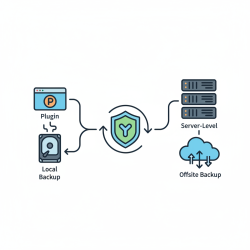
Applying this to WordPress, you might have your live site (copy 1), a local backup on an external hard drive (copy 2, media type 1), and a cloud backup (copy 3, media type 2, off-site). This multi-faceted approach drastically reduces the risk of data loss.
Implementing a Comprehensive Backup Strategy
Beyond choosing storage locations, a holistic backup strategy involves several other best practices:
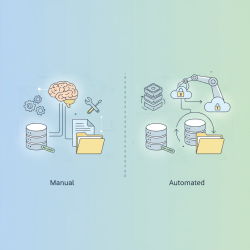
Automation: Use reliable WordPress backup plugins that can schedule and automatically push backups to your chosen remote and cloud destinations. Manual backups are prone to human error and inconsistency.
Regular Testing: It's not enough to just create backups; you must regularly test them by performing a full restoration to a staging environment. This verifies that your backups are complete, uncorrupted, and can be successfully restored when needed.
Encryption: Ensure all backups, whether local, remote, or cloud-based, are encrypted. This is your last line of defense against unauthorized access if a storage device is compromised.
Monitoring and Alerts: Set up monitoring to ensure your scheduled backups are completing successfully. Many backup plugins provide email notifications for success or failure.
Versioning: Store multiple versions of your backups, not just the latest one. This allows you to roll back to a point before a critical error or malware infection was introduced.
Summary
Securely storing your WordPress backups is a non-negotiable aspect of website management. A singular approach to backup storage is inherently risky. The most effective strategy involves combining local, remote, and cloud storage options to create redundancy and mitigate various potential threats. By adhering to principles like the 3-2-1 backup rule, implementing robust encryption, automating your processes, and regularly testing your restoration capabilities, you can build a resilient defense against data loss, ensuring your WordPress site remains protected and recoverable.
Comprehension questions
 What are the primary benefits and drawbacks of using local storage for WordPress backups?Why is it recommended to use a combination of different storage types for WordPress backups?What security considerations should be prioritized when selecting a cloud storage provider for backups?Explain the concept of the 3-2-1 backup rule and how it applies to WordPress site protection.
Community Poll
Next Lesson
Course Contents : Mastering WordPress Site Maintenance
- >> 8.
 Secure WordPress Backup Storage