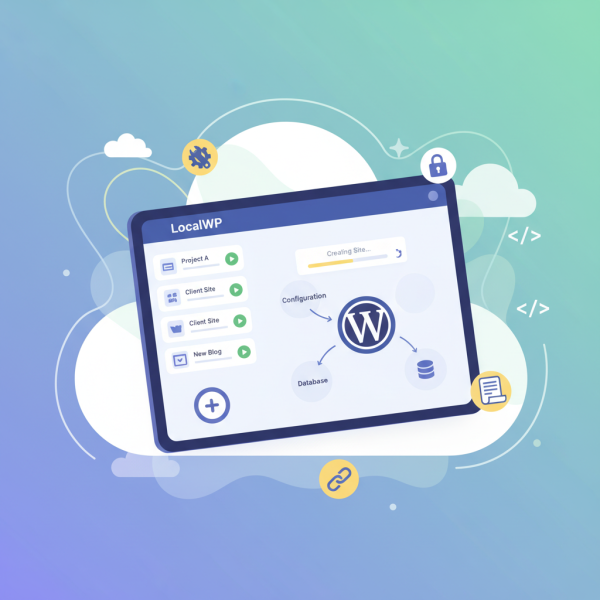
Effortless WordPress Development with LocalWP
- -->> 5. Effortless WordPress Development with LocalWP
What you'll learn
 LocalWP IntroductionSite Creation ProcessAdvanced FeaturesWorkflow Enhancement
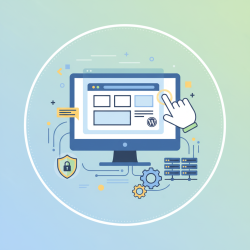
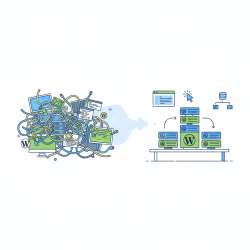
Developing WordPress websites efficiently requires a robust and user-friendly local development environment. Traditional methods often involve complex configurations of Apache, MySQL, and PHP, which can be daunting for beginners and time-consuming for experienced developers alike. This is where LocalWP, formerly known as Local by Flywheel, steps in as a game-changer. LocalWP provides an incredibly intuitive and powerful platform that simplifies the process of setting up and managing multiple WordPress sites on your local machine. It allows developers to create, test, and debug WordPress projects without the need for an internet connection, offering a seamless and isolated environment tailored specifically for WordPress development.
What is LocalWP and Why Use It?
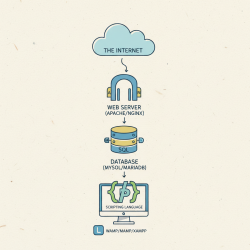
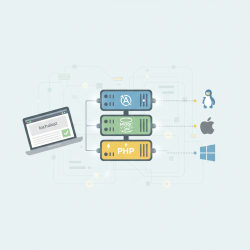
LocalWP is a free, desktop application designed to streamline WordPress development workflows. It bundles all the necessary components—Nginx or Apache, MySQL, and PHP—into a single, easy-to-use package. Instead of manually configuring server environments, LocalWP automates the entire setup process, making it possible to launch a new WordPress site in just a few clicks. Its primary appeal lies in its simplicity and efficiency, enabling developers to focus more on building and less on environment management.
The core advantages of incorporating LocalWP into your development process are numerous. It offers complete isolation for each site, meaning different projects can run on different PHP versions or web servers without conflicts. This flexibility is crucial when working on multiple client projects with varying requirements. Furthermore, LocalWP significantly speeds up development by eliminating the latency associated with remote servers. You gain the ability to experiment freely, break things, and fix them without impacting live sites, fostering a safer and more productive development playground.
Getting Started: Installation of LocalWP
The journey to effortless local WordPress development begins with installing LocalWP. The process is straightforward and consistent across major operating systems like Windows and macOS.
- Visit the official LocalWP website (localwp.com).
- Download the installer appropriate for your operating system.
- Run the installer and follow the on-screen prompts. The installation is typically quick and requires minimal user intervention.
Upon its first launch, LocalWP will guide you through a brief setup, ensuring all necessary dependencies are in place. Once installed, you'll be greeted by a clean, intuitive interface, ready for your first WordPress site creation.
Creating Your First WordPress Site
Setting up a new WordPress site with LocalWP is a remarkably simple process that takes only a few minutes. This streamlined approach is one of LocalWP's most celebrated features.
Here’s a step-by-step guide to creating your first site:
- Launch LocalWP: Open the application on your computer.
- Add a New Site: Click the "Add a new site" button, usually indicated by a large plus icon in the bottom-left corner of the interface.
- Name Your Site: Enter a descriptive name for your WordPress project. LocalWP will automatically generate a local domain and site path based on this name. You can click "Advanced Options" to customize these, if desired.
- Choose Your Environment: You'll be presented with options for your server environment. The "Preferred" option provides a stable, commonly used configuration (Nginx, latest PHP, MySQL 8.0), which is recommended for most users. Alternatively, you can select "Custom" to specify PHP version, web server (Nginx or Apache), and MySQL version according to your project's needs.
- Set Up WordPress: Enter a WordPress username, password, and email address for your administrative user. This will be the account you use to log into your local WordPress dashboard.
- Provision the Site: Click "Add Site." LocalWP will then begin provisioning your site, downloading and installing WordPress, setting up the database, and configuring the server environment. This process typically takes less than a minute.
Once provisioning is complete, your new WordPress site will be running locally. You'll see it listed in the LocalWP sidebar, ready for development. From here, you can easily access the WordPress admin dashboard or view the live site in your browser.
Managing Multiple Sites with Ease
One of LocalWP's strongest features is its ability to manage multiple WordPress installations seamlessly. The sidebar clearly lists all your local sites, providing quick access and control over each project.
For each site, you have direct controls to:
- Start/Stop Site: Toggle the site's server on or off, conserving system resources when a site is not actively being worked on.
- Open Site: Launch the site in your default web browser to view the frontend.
- Open WP Admin: Directly open the WordPress administration dashboard, ready for you to log in and start customizing your site.
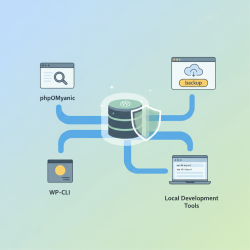
- Database Tools: Access phpMyAdmin-like tools to manage your site's database directly.
- Site Folder: Open the site's root directory in your file explorer, making it easy to access theme files, plugin files, and other WordPress core components.
This centralized management makes it incredibly easy to switch between different projects, ensuring each has its dedicated, isolated environment.
Powerful Features for Developers
Beyond basic site creation and management, LocalWP offers a suite of advanced features designed to enhance the developer experience and streamline various aspects of the WordPress workflow.
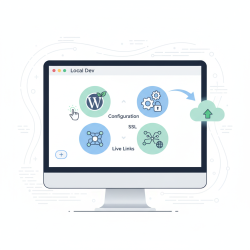
- One-Click SSL: Secure your local development sites with a free, trusted SSL certificate. This is vital for testing secure connections, ensuring mixed content warnings don't appear, and developing sites that rely on HTTPS.
- Live Links: Generate a public, shareable URL for your local site. This feature allows clients or colleagues to view your work in progress without you having to deploy it to a staging server. It creates a temporary, secure tunnel to your local machine, making collaboration incredibly simple.
- Blueprints: Save a configured WordPress site, including themes, plugins, and settings, as a "Blueprint." When creating new sites, you can instantly deploy a Blueprint, saving significant time on repetitive setups. This is invaluable for agencies or developers who frequently start projects with a similar foundational stack.
- Add-ons: Extend LocalWP's functionality with various add-ons available from the LocalWP ecosystem. These can include tools for image optimization, code linting, or more advanced database management.
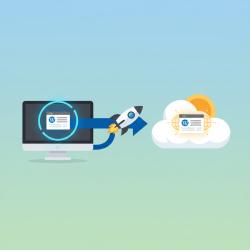
- Connect to Flywheel/WP Engine: For users of Flywheel or WP Engine hosting, LocalWP offers direct integration to push and pull sites between your local environment and your live hosting account. This greatly simplifies the deployment and synchronization process.
These features transform LocalWP from a simple local server into a comprehensive development tool that addresses common pain points in the WordPress development lifecycle.
Troubleshooting and Best Practices
While LocalWP is generally very stable, occasional issues may arise. Most commonly, these involve port conflicts with other applications running on your system, or resource allocation challenges. LocalWP provides helpful diagnostics and suggestions when these occur. Regularly updating LocalWP to the latest version ensures you have access to the newest features, bug fixes, and security enhancements. Though primarily for development, it's always good practice to keep snapshots or manual backups of your local sites, especially before major changes. Familiarizing yourself with the LocalWP logs can also be very helpful for diagnosing more complex problems.
Summary
LocalWP stands out as an indispensable tool for anyone involved in WordPress development. From its effortless installation to its intuitive site creation wizard and powerful advanced features like Live Links and Blueprints, it dramatically simplifies the entire local development workflow. By providing a stable, isolated, and highly customizable environment, LocalWP empowers developers to build, test, and manage multiple WordPress projects with unprecedented ease and efficiency. Embracing LocalWP means embracing a more productive and enjoyable WordPress development experience, freeing you from tedious server configurations and letting you focus on bringing your creative visions to life.
Comprehension questions
 What are the primary benefits of using LocalWP for WordPress development?Describe the steps involved in creating a new WordPress site using LocalWP.How does LocalWP facilitate collaboration or sharing of local sites?What are some of the advanced functionalities offered by LocalWP beyond basic site creation?
Community Poll
Next Lesson
Course Contents : WordPress Local Development Environments
- >> 5.
 Effortless WordPress Development with LocalWP