Troubleshooting WordPress Local Development Issues
- -->> 10. Troubleshooting WordPress Local Development Issues
What you'll learn
 Local Environment SetupDatabase TroubleshootingWordPress DebuggingPerformance Optimization
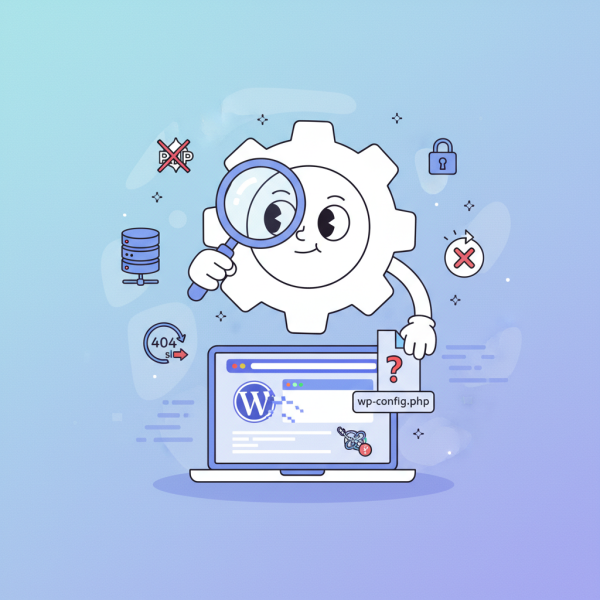
Developing WordPress websites locally offers numerous advantages, from faster development cycles to a safer environment for experimentation. However, even the most experienced developers occasionally encounter roadblocks during local installation and day-to-day work. These common issues, ranging from database connection failures to the dreaded White Screen of Death, can be frustrating and time-consuming. Understanding the root causes of these problems and knowing how to systematically troubleshoot them is crucial for maintaining productivity and ensuring a smooth development workflow.
Common Setup Pitfalls
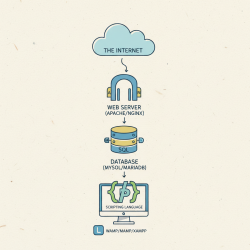
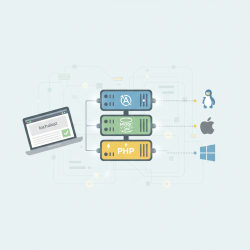
The initial setup phase is a frequent source of local development issues. One common problem involves misconfigured web servers like Apache or Nginx, or an outdated PHP version that doesn't meet WordPress requirements. Ensuring your local environment (e.g., Local by WP Engine, MAMP, XAMPP, Docker) is properly configured with compatible software versions is a critical first step. Always check the PHP version against the latest WordPress recommendations.
Another frequent misstep is incorrect database credentials. WordPress needs precise information to connect to its database. If the database name, username, or password in your wp-config.php file doesn't match what's set up in your local database management system (like phpMyAdmin), a connection error will occur. Double-check these details meticulously.
File permissions are often overlooked but can cause significant headaches. If WordPress can't write to certain directories or files, it can lead to failed installations, inability to upload media, or plugin/theme update issues. Generally, directories should be 755 and files 644. Incorrect permissions can sometimes block access entirely or lead to security vulnerabilities, so it's a balance.
Database Connection Troubles
The infamous "Error establishing a database connection" message is one of the most common and immediate signs of trouble. This usually points to an issue with how WordPress is trying to communicate with your database server. Begin by verifying that your local database server (MySQL/MariaDB) is actually running. Sometimes, local server stacks might not start all services automatically.
Next, meticulously review the wp-config.php file for the database credentials: DB_NAME, DB_USER, DB_PASSWORD, and DB_HOST. A common mistake is using 'localhost' for DB_HOST when your database server is configured differently, or vice-versa. Ensure these values precisely match the database setup on your local machine. Even a single typo can prevent a successful connection.
WordPress Core & Plugin/Theme Issues
The "White Screen of Death" (WSOD) is perhaps the most feared symptom in WordPress development. It typically indicates a fatal PHP error, but without any error message displayed. To diagnose a WSOD, enable debugging in WordPress by setting define('WP_DEBUG', true); and define('WP_DEBUG_LOG', true); in your wp-config.php file. This will either display the error on screen or log it to a debug.log file within the wp-content directory.
Most WSODs are caused by problematic plugins or themes. A common troubleshooting step is to disable all plugins by renaming the plugins folder inside wp-content (e.g., to plugins_old). If the site comes back, reactivate plugins one by one until the culprit is found. Similarly, switch to a default WordPress theme (like Twenty Twenty-Four) by renaming your current theme folder to rule out theme-related issues.
Other PHP-related errors include "Maximum execution time exceeded" or "Allowed memory size exhausted." These occur when a script takes too long to run or consumes too much memory. These limits can be adjusted in your PHP configuration file (php.ini) by increasing max_execution_time and memory_limit values, respectively. Remember to restart your local server after making changes to php.ini.
URL and Permalinks Problems
After migrating a WordPress site or if your local environment's URL changes, you might encounter issues with broken links or incorrect URLs. This often stems from outdated siteurl and home options stored in the WordPress database. These can be updated directly in the wp_options table via phpMyAdmin or a similar tool. Alternatively, define them in wp-config.php for a temporary fix: define('WP_HOME','http://localhost/yoursite'); and define('WP_SITEURL','http://localhost/yoursite');. Remember to remove these lines once updated in the database to avoid potential conflicts.
Permalink issues, where pages return a 404 error even though they exist, are often related to the web server's rewrite rules. For Apache, this means checking the .htaccess file and ensuring the mod_rewrite module is enabled. If you're using Nginx, you'll need to configure your server block with the correct rewrite rules for WordPress permalinks. Simply re-saving your permalink settings in the WordPress admin area (Settings > Permalinks) can often regenerate the .htaccess file and resolve the issue.
Performance and Speed Bottlenecks
A slow local development environment can significantly hinder productivity. Common causes include resource-intensive plugins, inefficient database queries, or simply having too many applications running simultaneously on your machine. Start by reviewing your active plugins; disable any that are not essential for your current development task. Use browser developer tools to identify slow-loading assets or long server response times.
Caching plugins, while beneficial for live sites, can sometimes cause confusion during local development by serving stale content. It's often best to disable caching plugins entirely on your local setup to ensure you're always seeing the most current version of your work. Furthermore, ensure your local server has sufficient resources allocated, especially if you're using containerized environments like Docker, which can sometimes be resource-heavy.
Debugging Tools and Best Practices
Effective troubleshooting relies on good debugging practices. Here are some essential tools and techniques:
- WP_DEBUG: As mentioned, enable this constant in
wp-config.phpto reveal PHP errors. Combine it withWP_DEBUG_LOGfor logging errors to a file, preventing them from being displayed publicly (even locally). - PHP Error Logs: Beyond WordPress's own debug log, your web server (Apache/Nginx) and PHP itself maintain error logs. These can provide deeper insights into server-side issues.
- Browser Developer Tools: Use your browser's inspect element feature (usually F12) to check for JavaScript errors, network request failures, and CSS rendering problems. The Console and Network tabs are particularly useful.
- Version Control (Git): Regularly commit your changes. If an issue arises, you can easily revert to a previous working state, making it easier to pinpoint when a problem was introduced.
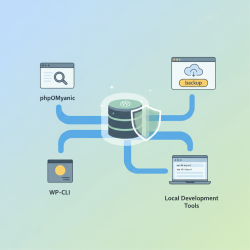
- Backups: Before making significant changes or attempting complex fixes, always back up your database and files. This provides a safety net if things go wrong.
Summary
Successfully navigating common local development issues in WordPress boils down to a systematic approach and understanding typical problem areas. From ensuring correct server configurations and database credentials during setup, to diagnosing White Screens of Death with debugging tools, and resolving permalink or performance snags, a methodical investigation is key. By leveraging tools like WP_DEBUG, inspecting error logs, and adhering to best practices like version control and regular backups, developers can efficiently identify and resolve problems, ensuring a productive and less frustrating local development experience.
Comprehension questions
 What are three common setup pitfalls encountered during WordPress local development?Name two essential debugging tools or practices recommended for efficient WordPress local development.
Review Quiz
Next Lesson
Course Contents : WordPress Local Development Environments
- >> 10.
 Troubleshooting WordPress Local Development Issues