Efficiently Managing Multiple Projects
- -->> 6. Efficiently Managing Multiple Projects
What you'll learn
 Local environment setupProject organization strategiesSeamless site switchingDevelopment workflow best practices
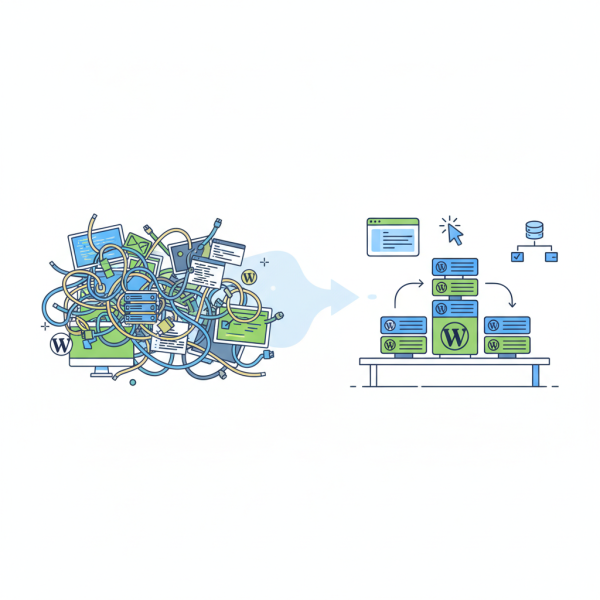
Managing a single WordPress site locally is straightforward, but when you begin working on multiple projects simultaneously, your local development environment can quickly become a tangled mess. Designers, developers, and agencies often juggle several client sites, personal projects, or experimental builds. An unorganized local setup can lead to confusion, wasted time, and potential conflicts between different project requirements. This article will guide you through understanding how to efficiently organize and switch between various WordPress projects within your local environment, ensuring a smooth and productive workflow.
Why Efficient Local Management Matters
An efficient local development setup is not just about tidiness; it's a critical component of productivity and reliability. When you're constantly switching contexts between different WordPress projects, having a clear and well-structured local environment reduces mental overhead and the risk of errors. It allows for quick testing of new plugins or themes in isolation without affecting other projects. Furthermore, a good local management strategy helps prevent software version conflicts and database inconsistencies that can arise when projects share resources haphazardly.
Consider the benefits:
- Increased Productivity: Less time spent troubleshooting or searching for specific project files means more time for actual development.
- Reduced Conflicts: Each project can have its own isolated environment, preventing plugin or theme incompatibilities from spilling over.
- Easier Testing: Quickly spin up a new test site or revert to a previous state for bug reproduction and solution testing.
- Seamless Collaboration: A consistent local setup makes it easier to share project environments or collaborate with team members.
Essential Tools for Local Development
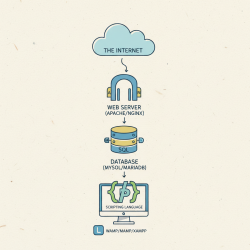
The foundation of effective local WordPress management lies in choosing the right tools. While you can manually set up Apache, MySQL, and PHP, dedicated local development applications simplify the process significantly, especially when dealing with multiple sites.
Local by Flywheel
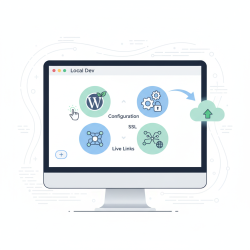
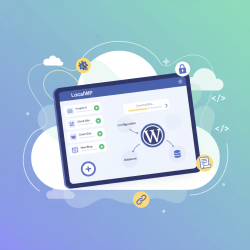
Local by Flywheel is a popular, free, and incredibly user-friendly tool specifically designed for WordPress development. It allows you to create new WordPress sites with a few clicks, each running in its own isolated environment. It handles all the server configuration, database setup, and WordPress installation automatically. Switching between sites is as simple as selecting them from a list in the application's sidebar.
DevKinsta
Developed by Kinsta, DevKinsta offers a similar robust local development experience. It's also free and provides a clean interface for creating, managing, and developing WordPress sites locally. DevKinsta includes powerful features like one-click site creation, email testing, and a built-in database manager. Its integration with Kinsta hosting can be a significant advantage for users of their platform, but it's fully functional for any WordPress developer.
XAMPP, MAMP, WAMP (and Manual Stacks)
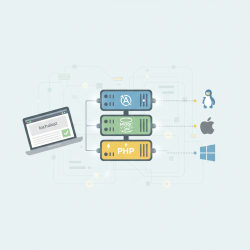
For those who prefer more control or a deeper understanding of the underlying stack, traditional packages like XAMPP (cross-platform), MAMP (macOS), or WAMP (Windows) provide Apache, MySQL, and PHP. Managing multiple sites with these tools typically involves configuring virtual hosts and setting up separate databases manually for each project. While more hands-on, this approach offers maximum flexibility but requires a higher level of technical expertise and careful configuration to avoid conflicts.
Organizing Your WordPress Projects
Once you have your preferred local development tool in place, establishing a systematic organization for your projects is crucial.
Consistent Naming Conventions
Adopt a clear and consistent naming convention for your local sites and their corresponding folders. This could involve client names, project names, or a combination (e.g., "client-projectname-dev" or "myblog-staging"). Consistency makes it much easier to locate specific projects quickly, whether you're navigating through your file system or within your local development application.
Dedicated Project Folders
Even if your local development tool creates its own internal structure, it's good practice to have a well-defined root directory where all your local WordPress projects reside. Within this, each project should ideally have its own self-contained folder. This isolation prevents accidental modifications to other projects and keeps dependencies separate. For manual setups, this means each site gets its own document root.
Version Control (Git)
Integrating version control, specifically Git, into your local workflow is indispensable. Each WordPress project should be a Git repository. This allows you to track changes, revert to previous versions, and manage different branches for features or bug fixes. It's not just for deployment; Git is a powerful organizational tool for your local files, providing a historical record and enabling safe experimentation.
Seamless Switching Between Sites
The ability to quickly and reliably switch between different WordPress projects is a hallmark of an efficient local environment.
Leveraging Local Development Tools
Tools like Local by Flywheel and DevKinsta excel at this. They provide a dashboard or sidebar where all your local sites are listed. Starting, stopping, and accessing the admin or frontend of any site is usually a one-click operation. These tools also manage the necessary host file entries and port assignments behind the scenes, so you don't have to.
WP-CLI for Quick Actions
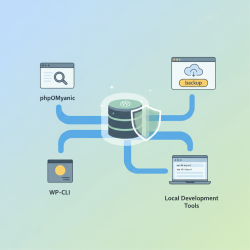
WordPress Command Line Interface (WP-CLI) is a powerful tool for managing WordPress installations directly from your terminal. If you have multiple local sites, you can navigate into a project's root directory and use WP-CLI to perform tasks like updating plugins, creating users, or importing/exporting databases without ever touching the browser or database client. This can be significantly faster for repetitive tasks.
Host File Management (for Manual Setups)
If you're using XAMPP/MAMP/WAMP, you'll likely be managing virtual hosts. Your system's hosts file maps domain names to IP addresses. For each local site, you'll add an entry like `127.0.0.1 mysite.local`. Switching between sites means ensuring your web server configuration correctly points to the right document root for the requested domain. Tools like MAMP Pro automate this, but with free versions, it's often a manual configuration process.
Best Practices for Local WordPress Workflow
Beyond tools and organization, adopting certain practices enhances overall efficiency.
- Regular Backups: Even local environments can face data loss. Regularly back up your local databases and project files, especially before major updates or changes.
- Keep Tools Updated: Ensure your local development application, PHP, MySQL, and WordPress core are kept up-to-date. This helps prevent security vulnerabilities and ensures compatibility with modern plugins and themes.
- Isolate Projects: Avoid sharing themes, plugins, or database instances across different projects unless absolutely necessary and managed carefully. Each project should be as self-contained as possible.
- Document Your Setup: Especially for complex setups or unique project requirements, document your local environment configurations, dependencies, and any specific steps needed to get a project running.
Summary
Effectively managing multiple local WordPress sites is fundamental for any serious developer or agency. By choosing robust local development tools like Local by Flywheel or DevKinsta, implementing consistent organizational strategies such as naming conventions and version control, and mastering efficient switching techniques, you can transform a chaotic local environment into a highly productive one. Adopting best practices like regular backups and keeping tools updated further solidifies a reliable workflow, allowing you to focus more on development and less on troubleshooting.
Comprehension questions
 What are two common local development tools recommended for managing multiple WordPress sites?Why is a consistent naming convention important for organizing local WordPress projects?Besides dedicated local development tools, what command-line interface can assist with quick actions on WordPress sites?Name three best practices for an efficient local WordPress workflow mentioned in the article.
Review Quiz
Next Lesson
Course Contents : WordPress Local Development Environments
- >> 6.
 Efficiently Managing Multiple Projects