Implementing Child Themes for Customization
- -->> 7. Implementing Child Themes for Customization
What you'll learn
 Understanding Child ThemesBenefits of Child Theme UsageSteps to Create a Child ThemeSafe Customization Techniques
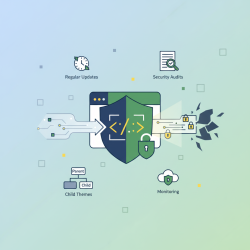
When developing or maintaining a WordPress website, customization is almost always a necessity. Users often want to alter the look, feel, or functionality of their chosen theme to better suit their brand or specific requirements. However, directly modifying a parent theme's core files is a common pitfall that can lead to significant headaches. Every time the parent theme receives an update, all those precious customizations are at risk of being overwritten and lost, forcing developers to re-implement their changes or, worse, preventing them from updating their theme at all to preserve their work. This dilemma highlights a critical need for a safe and sustainable method of theme customization. Enter the child theme: an elegant and powerful solution designed to protect your modifications, streamline your development workflow, and ensure your website remains robust and up-to-date.
What is a Child Theme?
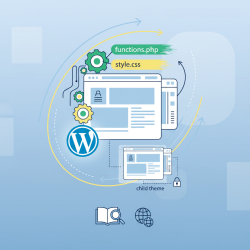
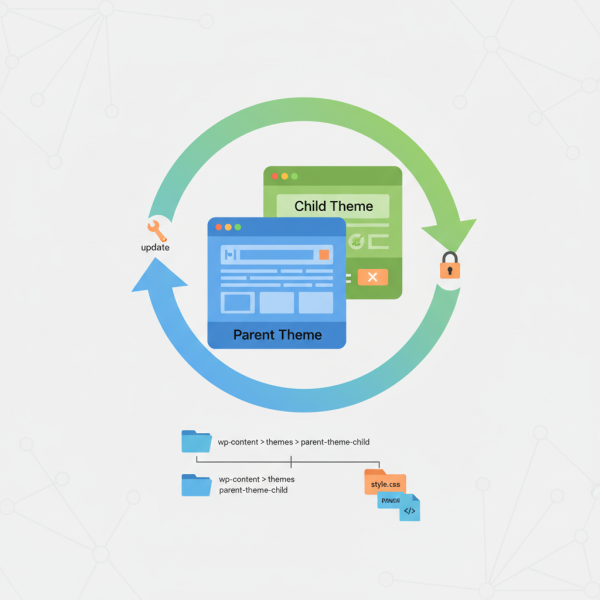
A child theme in WordPress is a theme that inherits the functionality, features, and styling of another theme, known as the parent theme. Essentially, it acts as a protective layer, allowing you to make modifications and add new functionalities without touching the parent theme's original files. When WordPress loads your site, it first looks for templates and styles in the child theme. If a particular file or style isn't found in the child theme, it then falls back to the parent theme. This hierarchical structure is the fundamental principle behind its effectiveness. It's a method of extending a theme rather than directly altering it.
Why Use a Child Theme?
The benefits of implementing a child theme are numerous and far-reaching, especially for long-term website maintenance and development. The primary advantage revolves around theme updates.
- Safe Updates: The most crucial benefit is that a child theme allows you to update your parent theme without losing your customizations. When you update the parent theme, only its original files are replaced, leaving your child theme's modifications completely intact. This ensures you can always leverage the latest security patches, bug fixes, and new features from the parent theme developer without fear.
- Easier Development: Working with a child theme keeps your customizations separate from the parent theme's code, making it easier to track your changes, debug issues, and manage your custom styles and functions.
- Improved Code Organization: By isolating your custom code, your project becomes cleaner and more organized. This is beneficial for solo developers and even more so for teams working on the same project.
- Reversibility: If a customization causes an issue, it's often simpler to isolate and remove or revert changes made within the child theme without affecting the core theme files.
- Faster Development: You can start with a fully functional theme and only customize what's necessary, saving significant development time compared to building a theme from scratch.
Creating Your First Child Theme
Creating a basic child theme is a straightforward process, requiring just a few key steps. It's important to understand the essential files involved:
First, create a new folder within your WordPress themes directory (wp-content/themes/). Name this folder something descriptive, like [parenttheme]-child (e.g., twentytwentythree-child).
Inside this new child theme folder, you'll need at least two files:
style.css: This file is mandatory. It contains a theme header comment that tells WordPress about your child theme, including its name, description, author, and, crucially, the template it extends (the parent theme's directory name). This is also where you'll add your custom CSS rules. It is essential to correctly enqueue the parent theme's stylesheet within your child theme'sfunctions.phpfile, rather than using@import, for better performance and proper loading order.functions.php: This file is where you'll add custom PHP functions and actions, override parent theme functions, or enqueue scripts and styles. It's vital for enqueuing the parent theme's stylesheet properly to ensure all original styles are loaded before your child theme's custom styles.
Once these files are in place, you can activate your child theme from the WordPress admin dashboard under Appearance > Themes.
Customizing with a Child Theme
With your child theme active, you can begin making your desired customizations safely. There are several ways to extend and modify your website's appearance and functionality:
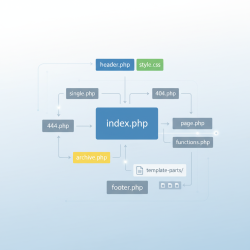
Overriding Template Files: To modify a specific page layout or part of the theme's structure, simply copy the relevant template file from the parent theme into your child theme's directory. For example, to change how a single post looks, copy single.php from the parent theme to your child theme folder. WordPress will then use your child theme's version of that file instead of the parent's. You can then edit your copy of the file without affecting the original.
Adding Custom CSS: All your custom CSS rules should be added directly into your child theme's style.css file. Since your child theme's stylesheet is loaded after the parent's (when enqueued correctly), your custom rules will override conflicting styles from the parent theme.
Modifying Functions: If you need to add new functionality or alter existing functions, you can do so in your child theme's functions.php. WordPress loads the child theme's functions.php before the parent's. If the parent theme's functions are pluggable (meaning they are wrapped in a function_exists() conditional), you can redefine them in your child theme. Otherwise, you can use WordPress hooks (actions and filters) to modify existing functionality.
Best Practices for Child Theme Development
To ensure your child theme is robust and maintainable, consider these best practices:
- Only Override What's Necessary: Avoid copying entire template files if you only need to change a small part. Sometimes, using hooks or small template partials is more efficient.
- Use Proper Enqueuing: Always enqueue parent theme styles and scripts using
wp_enqueue_style()andwp_enqueue_script()in your child theme'sfunctions.php, rather than using@importinstyle.css. - Comment Your Code: Clearly comment your custom code in both
style.cssandfunctions.phpto explain what your modifications do and why they were made. This is invaluable for future maintenance. - Test Thoroughly: Always test your child theme modifications in a staging environment before deploying them to a live site.
Summary
Implementing a child theme is an indispensable practice for any serious WordPress developer or site owner looking to customize their website. It provides a protective layer, ensuring that all your unique modifications, from custom styling to extended functionality, are preserved safely through parent theme updates. By understanding how to create and utilize a child theme effectively, you safeguard your investment in customization, streamline your development workflow, and maintain the integrity and security of your WordPress site for the long term, avoiding the common pitfalls of direct theme modification.
Comprehension questions
 What is the primary risk of directly modifying a parent theme's files?Which two essential files are typically required to create a functional child theme?How does a child theme inherit styles from its parent theme?Besides preserving customizations, what other significant benefits do child themes offer developers?
Community Poll
Next Lesson
Course Contents : WordPress Themes and Site Customization
- >> 7.
 Implementing Child Themes for Customization