Diagnosing and Resolving WordPress Theme Issues
- -->> 11. Diagnosing and Resolving WordPress Theme Issues
What you'll learn
 Website HealthLayout DiagnosticsPlugin Conflict ResolutionAdvanced Debugging Techniques
Websites, whether personal blogs or bustling e-commerce platforms, are complex ecosystems where themes, plugins, and core software interact. Even minor incompatibilities or misconfigurations can lead to significant problems, ranging from minor layout glitches to complete site breakdowns. Acquiring robust troubleshooting skills not only minimizes downtime and frustration but also empowers you to maintain a stable, high-performing online presence. This guide will equip you with the knowledge and systematic approaches needed to tackle common theme-related challenges head-on.
The Foundation of Theme Troubleshooting
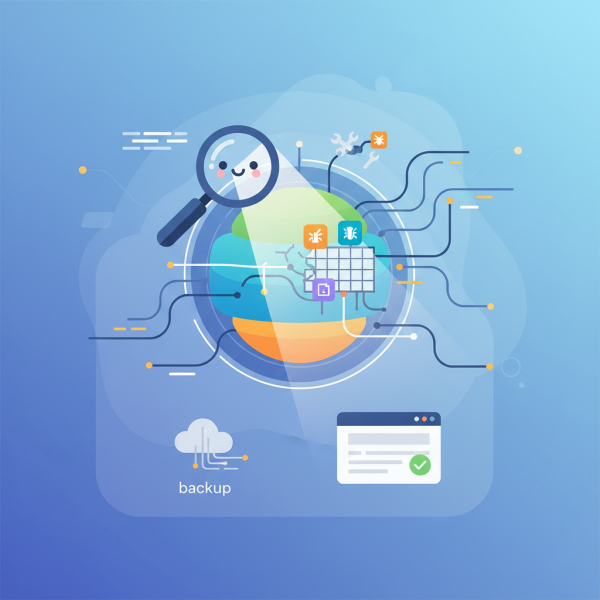
Effective troubleshooting begins with preparation and understanding. Before diving into specific issues, it’s critical to establish a solid foundation. Always start by creating a complete backup of your website. This crucial step acts as a safety net, allowing you to restore your site to a working state if any troubleshooting steps inadvertently cause further problems. Understanding your website's environment is equally important. Knowing your Content Management System (CMS), the specific theme in use, and the list of installed plugins provides context for potential issues. The browser's developer tools are your immediate allies; they offer real-time insights into your site's HTML structure, CSS styling, and JavaScript errors without altering the live site.
Familiarize yourself with the developer console, elements inspector, and network tab. These tools allow you to pinpoint which CSS rules are affecting an element, identify JavaScript errors, or see if resources are failing to load. This initial reconnaissance often provides immediate clues to the root cause of many visual discrepancies.
Diagnosing Layout and Styling Issues
Layout and styling problems are perhaps the most visually obvious theme-related issues. They can manifest in numerous ways, disrupting the user experience and the professional appearance of your site. Identifying these issues requires a keen eye and a systematic approach.
Common Layout Problems:
- Elements appearing misaligned or overlapping.
- Broken grid structures, especially on different screen sizes (responsive failures).
- Content or sidebars disappearing entirely.
- Incorrect font styles, sizes, or colors.
- Images not loading or displaying incorrectly.
When faced with such issues, your first resort should be the browser’s inspect element tool. Right-clicking on the problematic area and selecting "Inspect" will reveal the underlying HTML and the CSS rules applied to it. You can temporarily modify CSS properties within the developer tools to test potential fixes. Check if the issue persists across different browsers or devices, as this can indicate a browser-specific rendering problem or a responsive design flaw.
Also, investigate your theme's customizer or theme options panel. Many layout and styling settings are managed there. A recent change might have inadvertently caused the issue. Caching can also be a culprit; clear your website's cache (if you use a caching plugin) and your browser cache to ensure you are seeing the latest version of your site. Sometimes, CSS conflicts arise where one stylesheet's rules override another, often due to specificity or the use of `!important`. Identifying and overriding these with more specific CSS in a child theme's stylesheet is a common solution.
Unraveling Plugin Conflicts
Plugin conflicts are a frequent cause of website malfunctions, leading to anything from minor feature disruptions to the dreaded "white screen of death." These conflicts typically occur when two or more plugins, or a plugin and your theme, attempt to use the same function, variable, or library in incompatible ways.
How Conflicts Arise:
- Shared function names causing redeclaration errors.
- Conflicting JavaScript libraries interfering with each other.
- Outdated plugins or themes lacking compatibility with newer core versions.
- Resource-intensive plugins slowing down the site or hitting memory limits.
A systematic approach is paramount when dealing with plugin conflicts. The most effective method involves isolating the problematic component. Start by creating a backup. Then, if your site is still accessible, go to your plugin management area and deactivate all plugins. If the issue resolves, you know a plugin is the culprit. Re-activate each plugin one by one, checking your site after each activation, until the problem reappears. The last plugin activated before the issue returned is likely the cause.
If deactivating all plugins doesn't resolve the issue, the problem might lie with your theme. In this scenario, temporarily switch your active theme to a default WordPress theme, such as Twenty Twenty-Four. If the problem disappears, your theme is the source of the conflict. This test helps narrow down whether the theme or a plugin is causing the conflict. Always remember to switch back to your original theme or reactivate plugins carefully, and continuously monitor your site's behavior.
Error logs are another critical resource. On WordPress, enabling debugging mode by adding `define('WP_DEBUG', true);` and `define('WP_DEBUG_LOG', true);` to your `wp-config.php` file will record PHP errors to a `debug.log` file within your `wp-content` directory. This log can often point directly to the file and line number causing the error, whether it’s in a plugin or theme.
Advanced Troubleshooting Techniques
Beyond the basics, several advanced techniques can help you pinpoint more elusive problems and implement robust solutions.
Debugging Mode: As mentioned, enabling `WP_DEBUG` in WordPress provides detailed error messages, which are invaluable for understanding what's going wrong under the hood. While powerful, remember to disable debugging mode on live production sites, as it can expose sensitive information and impact performance.
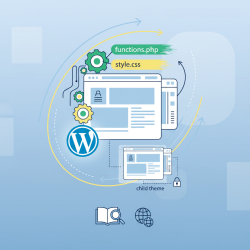
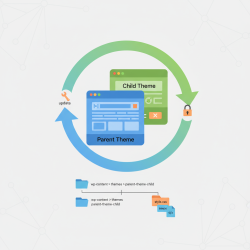
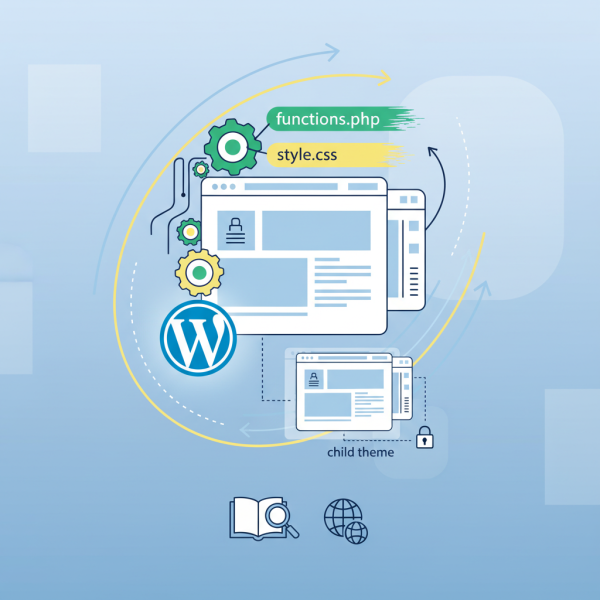
Child Themes: For any theme customizations, always use a child theme. This ensures that your modifications are not overwritten when the parent theme receives an update. If you've modified a parent theme directly, an update could erase your changes, potentially causing new layout or functionality issues. A child theme allows you to safely override parent theme files and styles without risking update conflicts.
Database Inspection: Sometimes, theme or plugin issues stem from corrupted or incorrectly updated database entries. While this is a more advanced step, familiarizing yourself with tools like phpMyAdmin can help you inspect relevant tables. However, always exercise extreme caution and perform a database backup before making any changes.
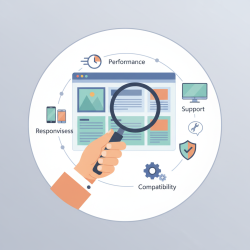
Version Compatibility: Ensure that your PHP version, WordPress core, active theme, and all plugins are compatible with each other. Outdated components are a common source of vulnerabilities and conflicts. Regularly checking for and applying updates, after testing them on a staging environment, is a proactive troubleshooting measure.
Summary
Acquiring proficient theme troubleshooting skills is fundamental for maintaining a healthy and functional website. This guide has emphasized the importance of a systematic approach, starting with crucial preparatory steps like thorough backups and understanding your site's environment. We explored how to diagnose and resolve common layout and styling issues using browser developer tools and theme settings, as well as how to systematically identify and address plugin conflicts through deactivation tests and error log analysis. Finally, we touched upon advanced techniques such as debugging mode, the strategic use of child themes, database inspection, and ensuring version compatibility. By applying these methods, you can confidently tackle most theme-related challenges, ensuring your website remains robust and delivers an optimal user experience.
Comprehension questions
 Why is creating a complete website backup considered a critical first step in theme troubleshooting?What are the primary functions of browser developer tools in diagnosing layout and styling issues?Describe the systematic approach recommended for identifying a plugin that is causing a conflict.How does the use of a child theme protect website customizations during parent theme updates?
Community Poll
Next Lesson
Course Contents : WordPress Themes and Site Customization
- >> 11.
 Diagnosing and Resolving WordPress Theme Issues