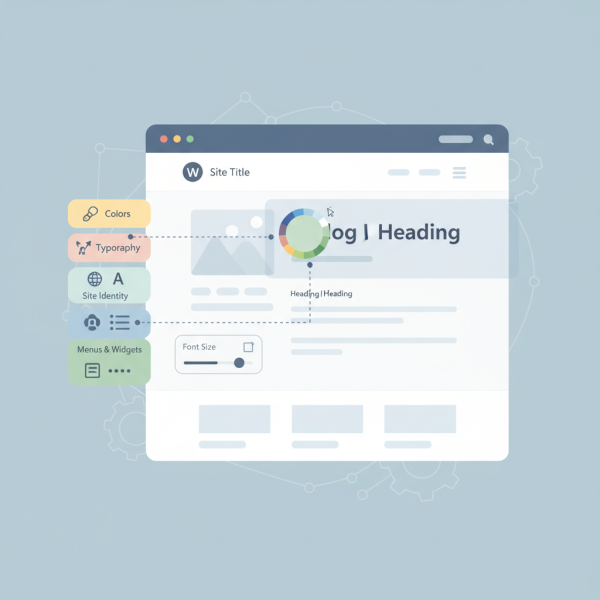
Utilizing the WordPress Customizer for Real Time Edits
- -->> 21. Utilizing the WordPress Customizer for Real Time Edits
What you'll learn
 Real-time Website CustomizationVisual Design ElementsWordPress Site BrandingUser Interface for Theme Settings
The WordPress Customizer is an invaluable tool that fundamentally transforms how users interact with their website's design. It provides a live, visual interface to tweak various aspects of a site's appearance, offering an immediate preview of changes before they go live. This real-time editing capability extends to crucial elements such as colors, typography, and the site's overall identity, making design adjustments intuitive and efficient for both beginners and experienced site administrators. Gone are the days of making changes, saving, and then refreshing a separate browser tab to see the outcome; the Customizer streamlines this process into a seamless visual experience.
Understanding the WordPress Customizer
At its core, the WordPress Customizer is a dedicated interface within the WordPress dashboard designed for theme customization. It operates on a "what you see is what you get" (WYSIWYG) principle, allowing users to modify their theme's settings and instantly see how those changes affect the live preview of their website. This powerful feature eliminates much of the guesswork associated with design modifications, fostering a more confident and exploratory approach to site aesthetics. Every adjustment, from a subtle color shift to a complete font overhaul, is reflected in real-time, providing immediate feedback.
Accessing and Navigating the Customizer
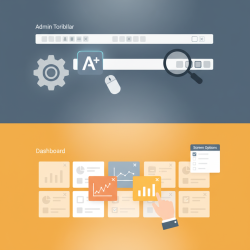
Accessing the Customizer is straightforward. From your WordPress admin dashboard, simply navigate to Appearance > Customize. This action opens the Customizer interface, which is typically divided into two main panels: a sidebar on the left containing all the customizable options and a live preview of your website on the right. The sidebar is organized into various sections, depending on your active theme and any active plugins, making it easy to locate specific settings related to your site's design.
Customizing Your Site's Color Palette
Colors play a significant role in establishing your brand identity and enhancing user experience. The WordPress Customizer offers robust controls for managing your site's color scheme. Within the "Colors" section (or similar, depending on your theme), you can typically adjust:
- Background Color: The primary color for your site's overall background.
- Text Color: The default color for paragraphs and general text.
- Link Colors: Colors for hyperlinks, including normal, hover, and active states.
- Heading Colors: Specific colors for H1, H2, H3, and other heading elements.
- Theme Accent Colors: Often, themes provide primary and secondary accent colors that affect buttons, highlight elements, and more.
Most themes provide color pickers, allowing you to visually select colors or input specific hexadecimal (hex) codes for precise matching to your brand guidelines. The instant visual feedback means you can experiment with different combinations until you achieve the perfect aesthetic balance.
Refining Your Site's Typography
Typography is crucial for readability and conveying your site's tone. The Customizer allows you to control many typographic elements without writing a single line of code. Common typography options include:
- Font Families: Choosing from a selection of fonts, often integrating with Google Fonts for a wider range of choices.
- Font Sizes: Adjusting the size of body text, headings, and other textual elements for optimal readability across devices.
- Font Weights: Selecting bold, light, normal, or semi-bold variations of fonts.
- Line Height: Controlling the spacing between lines of text to improve readability.
- Letter Spacing: Adjusting the space between individual characters.
Careful attention to typography ensures your content is not only visually appealing but also easy to consume, contributing significantly to a positive user experience. The Customizer's live preview makes it easy to compare different font combinations and sizes directly on your content.
Establishing Your Site's Identity
Your site's identity elements are foundational to branding and recognition. The Customizer provides a dedicated section, typically labeled "Site Identity," where you can manage these critical components:
- Site Title: The main name of your website, which appears in browser tabs and search results.
- Tagline: A short, catchy phrase that describes your website or business.
- Logo: Uploading your brand's official logo, which often replaces the site title and tagline in the header. Many themes allow for different logo versions for standard and retina displays, or even for dark mode.
- Site Icon (Favicon): A small square image that appears in browser tabs, bookmarks, and as an app icon on mobile devices. This is a vital branding element for professional recognition.
These elements are typically uploaded or entered via user-friendly controls, with the live preview immediately showing their placement and appearance on your site. This ensures consistency and proper alignment with your brand standards.
Beyond Colors, Typography, and Identity
While colors, typography, and site identity are core customization areas, the WordPress Customizer often extends to many other aspects of your theme. Depending on your active theme, you might also find sections for:
- Menus: Managing your site's navigation menus, assigning them to different locations.
- Widgets: Adding, removing, and arranging widgets in various sidebar and footer areas.
- Homepage Settings: Choosing whether your homepage displays your latest posts or a static page.
- Additional CSS: A powerful feature allowing you to add custom CSS code directly, overriding theme styles without modifying theme files.
- Theme Options: Many themes include a general "Theme Options" panel within the Customizer for broader settings like layout, header/footer specific configurations, or performance toggles.
The flexibility of the Customizer makes it a central hub for nearly all visual and structural adjustments a user might want to make to their WordPress site.
Tips for Maximizing Customizer Efficiency
To make the most of the WordPress Customizer, consider these practical tips:
- Save Draft vs. Publish: Use the "Save Draft" option if you're not ready to publish your changes, allowing you to resume customization later. "Publish" makes changes live immediately.
- Check Responsiveness: Utilize the responsive preview icons (desktop, tablet, mobile) at the bottom of the Customizer sidebar to ensure your design looks good on all device sizes.
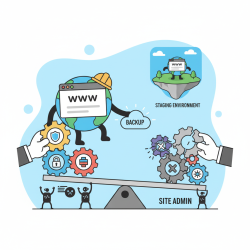
- Backup Regularly: Before making extensive changes, always ensure you have a recent backup of your WordPress site. While the Customizer is non-destructive, a backup provides peace of mind.
- Understand Theme Limitations: Remember that the Customizer's options are largely dictated by your active theme. Some themes offer more granular control than others.
- Use Additional CSS Judiciously: For advanced styling, the "Additional CSS" section is excellent, but keep your CSS organized and commented for future maintainability.
Summary
The WordPress Customizer stands as a cornerstone of modern WordPress site management, offering an intuitive and efficient way to visually modify a website's appearance. We explored how this live preview interface simplifies adjustments to critical design elements such as the overall color scheme, diverse typographic choices that influence readability and brand, and fundamental site identity components like logos and favicons. Furthermore, we touched upon its broader capabilities for managing menus, widgets, and even custom CSS, all while providing real-time feedback. By leveraging the Customizer, users can craft a visually cohesive and professional online presence with unparalleled ease and confidence, ensuring their site truly reflects their brand's aesthetic.
Comprehension questions
 What is the primary benefit of using the WordPress Customizer for design changes?Name three specific design elements that can be adjusted in real-time using the Customizer.How do you access the WordPress Customizer from the admin dashboard?Besides colors and typography, what essential branding elements can be managed under the
 Community Poll
Next Lesson
Course Contents : Website Speed Performance Optimization
- >> 21.
 Utilizing the WordPress Customizer for Real Time Edits