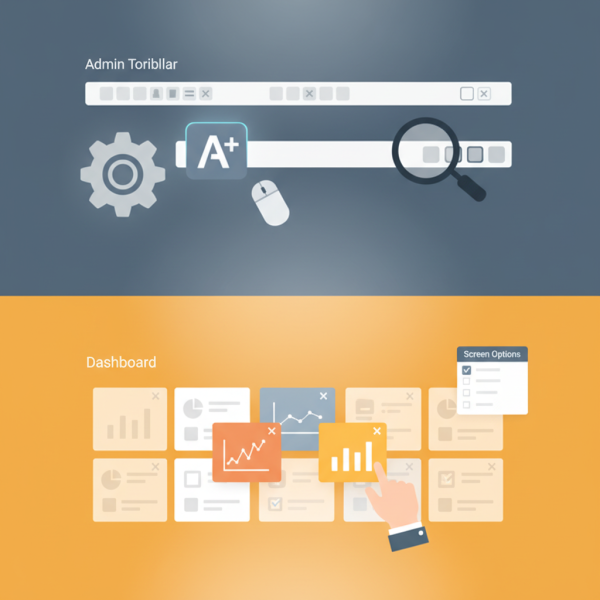
Personalizing the Admin Toolbar and Dashboard Widgets
- -->> 13. Personalizing the Admin Toolbar and Dashboard Widgets
What you'll learn
 Admin Toolbar CustomizationDashboard Widget ManagementWorkflow EfficiencyInterface Personalization
The administrative backend of any content management system or web application is the core control center where crucial tasks are performed. Yet, for many users, the default interface can feel cluttered, overwhelming, or simply not optimized for their specific workflow. Mastering the art of personalizing the Admin Toolbar and Dashboard Widgets is not just about aesthetics; it's a fundamental step towards creating a more efficient, intuitive, and ultimately more productive environment. By taking control of these primary interface elements, you can significantly streamline your daily operations, reducing unnecessary clicks and focusing on what truly matters for your tasks.
Understanding the Admin Toolbar
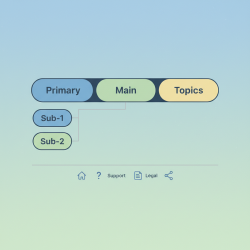
The Admin Toolbar, often found at the very top of your screen when logged into your backend, is designed to provide quick access to frequently used administrative functions, content creation links, and notifications. While incredibly useful, its default configuration can sometimes include items that are irrelevant to your daily tasks, especially if you have numerous plugins installed. This visual clutter can distract and slow down your navigation, making a simple action take longer than it should.
Its primary purpose is convenience, offering a global navigation that follows you across the frontend and backend of your site. However, if you rarely use certain links, they become noise rather than a helpful shortcut. Identifying these redundant elements is the first step in reclaiming your digital workspace.
Customizing the Admin Toolbar for Speed
Personalizing the Admin Toolbar involves judiciously removing elements you don't need and potentially adding custom links that are critical to your workflow. This process transforms a generic toolbar into a powerful, personalized navigation hub.
Removing Unnecessary Items
- Via Screen Options (if available): Some CMS platforms offer direct toggles for toolbar items within Screen Options or user profiles.
- Using Plugins: Numerous plugins are available that provide user-friendly interfaces for enabling or disabling specific toolbar menu items based on user roles or individual preferences. These plugins simplify what might otherwise require custom code.
- Custom Code (for advanced users): Developers can utilize functions to remove default nodes or modify existing ones. This offers the most granular control but requires comfort with coding.
By eliminating clutter, you ensure that only the most relevant actions are immediately visible, reducing decision fatigue and improving navigation speed. Imagine having direct links to specific reports, settings, or content types you access daily, right at your fingertips.
Adding Custom Links
Beyond removal, the power of the Admin Toolbar extends to adding your own custom links. This could include direct access to an external analytics dashboard, a specific page editor, or a custom post type archive that you manage frequently. Plugins often facilitate this, allowing you to define a link's text, URL, and even its parent menu item within the toolbar structure. For those comfortable with code, it's possible to programmatically insert new menu items tailored precisely to your needs, ensuring immediate access to your most critical resources.
Navigating Dashboard Widgets
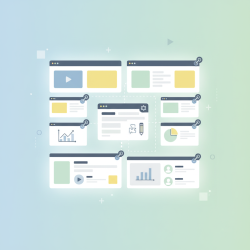
Upon logging into your backend, the dashboard is typically the first screen you encounter. It's designed to give you an at-a-glance overview of your site's status, recent activity, and quick access to various functions. This overview is presented through a series of "widgets," each serving a particular purpose, such as displaying site health, recent drafts, quick stats, or news feeds from the platform itself.
The default collection of widgets can often be extensive, and not all of them will be relevant to every user or every website. A cluttered dashboard can make it difficult to quickly find the information you need, leading to wasted time scrolling through irrelevant data.
Optimizing Your Dashboard Layout
A streamlined dashboard ensures that essential information is immediately visible, while less critical or unused widgets are hidden. This optimization dramatically improves the efficiency of your initial backend interaction.
Rearranging and Hiding Widgets
- Drag-and-Drop: Most modern content management systems allow you to reorder dashboard widgets by simply dragging and dropping them into preferred positions. This enables you to place your most frequently checked information higher up and in more prominent columns.
- Screen Options: A crucial feature often overlooked is the "Screen Options" tab, usually located at the top right of the dashboard screen. Clicking this reveals checkboxes for every available widget. By unchecking widgets you don't use, you can instantly declutter your view without permanently deleting them. This is often the quickest and most effective way to simplify your dashboard.
- Plugins for Widget Control: Similar to the Admin Toolbar, there are plugins specifically designed to give you enhanced control over dashboard widgets. These can allow you to hide widgets based on user role, create custom dashboards for different users, or even add powerful new informational widgets.
By strategically organizing and hiding widgets, you transform your dashboard from a generic information dump into a personalized control panel that highlights the data most pertinent to your responsibilities.
Beyond the Basics: Advanced Personalization Techniques
For individuals or teams managing complex websites or multiple sites, basic customization might not be enough. Advanced personalization involves implementing solutions that cater to specific user roles or highly specialized workflows.
Consider role-based adjustments: an editor might need quick access to pending posts and comments, while a site administrator might prioritize site health checks and plugin updates. Implementing different dashboard layouts and toolbar configurations for each role ensures that every user sees an interface tailored to their permissions and tasks. This can often be achieved through custom code snippets or by utilizing advanced administrative plugins that offer granular control over user interface elements.
Furthermore, the creation of custom dashboard widgets can provide unique insights or quick actions specific to your business needs. Imagine a widget displaying custom sales figures, recent form submissions, or a direct link to a custom report within your application. This level of tailoring moves beyond mere decluttering to genuinely enhancing functionality.
The Impact of a Tailored Interface
The benefits of a well-managed Admin Toolbar and Dashboard extend far beyond mere convenience. A personalized interface directly translates into a more efficient workflow, reducing the time spent navigating and searching for information. Users experience less cognitive load when their interface is clean and organized, allowing them to focus their mental energy on core tasks rather than sifting through irrelevant options.
This increased efficiency leads to higher productivity, fewer errors, and a more positive user experience. When the tools you use daily are optimized for your personal needs, the entire process of managing your website or application becomes smoother and more enjoyable. It empowers you to take control of your digital workspace, making it truly work for you.
Summary
Personalizing your administrative backend by managing the Admin Toolbar and Dashboard Widgets is a crucial step towards achieving a more efficient and productive workflow. This article explored the importance of understanding these primary interface elements, detailing strategies for customizing the Admin Toolbar by removing unnecessary items and adding valuable custom links to streamline navigation. We also delved into optimizing dashboard layouts through rearranging, hiding, and potentially creating widgets, ensuring that crucial information is readily accessible. Ultimately, a tailored interface reduces clutter, minimizes cognitive load, and significantly enhances overall user experience and productivity, empowering users to interact with their system more effectively.
Comprehension questions
 What is the primary benefit of customizing the Admin Toolbar and Dashboard Widgets?Name two methods for removing unnecessary items from the Admin Toolbar.How can users quickly hide irrelevant widgets from their dashboard without deleting them permanently?Beyond basic decluttering, what advanced personalization technique can significantly enhance functionality for different user roles?
Community Poll
Next Lesson
Course Contents : Website Speed Performance Optimization
- >> 13.
 Personalizing the Admin Toolbar and Dashboard Widgets